
VS Code · for developers
VS Code for developers on Mac: setup, shortcuts, debugging, and Git in 2026
To use VS Code for developers on Mac, install the app, add the code command to Terminal, and learn the Command Palette. Those three steps cover most of a working day in the editor. The rest of this page covers Mac-specific setup, the shortcuts worth memorizing, the settings that keep the editor fast, and where Lazur helps while you work.
You say“Why does code dot say command not found?”
Lazur · explains what's on screenLazur reads the error on your screen and explains the likely cause. Then it says the next step out loud, so you keep your hands on the keyboard.
Quick answer
- Download the build that matches your Mac chip from code.visualstudio.com, then drag the app into Applications.
- Run Shell Command: Install code and optionally copilot commands in PATH from the Command Palette, then restart Terminal.
- Open Source Control with ⇧⌘G. Git must be installed separately, because VS Code does not include it.
- Slow starts often come from the shell or from big folders. The default shell timeout is 10 seconds.
- Hold ⌥⌘ and ask Lazur where a control is, or how to do a task. Lazur points and guides, but you do the clicking.
75.9%
of Stack Overflow 2025 respondents use Visual Studio Code, across all platforms
Stack Overflow Developer Survey 2025: Technology66%
name 'AI solutions that are almost right, but not quite' as their top frustration with AI tools
Stack Overflow Developer Survey 2025: AI33%
of C++ developers name VS Code as their most-used IDE or editor, from 1,800 respondents in 22 countries
The State of C++ 2025, JetBrainsWhat developers ask Lazur in VS Code
Hold ⌥ ⌘ in VS Code and say it.
“What does this red squiggle mean?”
Lazur reads the highlighted line on your screen and explains the error in plain words, out loud.
Explains what's on screen · VS Code
“Where is the Run and Debug button?”
Lazur draws a circle and a label around the button, so you find it without hunting.
Points at it · VS Code
“Walk me through creating a launch.json.”
Lazur guides you one click at a time and waits for each click before it gives the next step.
Walks you through it · VS Code
“Remind me to push my branch before standup.”
Lazur adds an Apple Reminders item with that text. Timers and Calendar events work the same way by voice.
Handles the small stuff · VS Code
“Dictate a commit message here.”
Hold fn and speak. Clean, formatted text lands at the cursor in the Source Control message box.
Types what you say · VS Code
“Draft a pull request description from these changes.”
Lazur drafts the text from what is on screen and types it where your cursor sits. You review it before you open the pull request.
Drafts it · VS Code
“Research why our dev container build is slow on macOS.”
Lazur runs the search in its own Chrome tabs and returns a summary and a report. You still check each source before you act on it.
Researches in the background · VS Code
Why VS Code is the default editor for many Mac developers
VS Code is the most common editor in the surveys I could check. In the Stack Overflow Developer Survey 2025, 75.9% of respondents use Visual Studio Code. Visual Studio came next at 29%, and IntelliJ IDEA had 27.1%. Those numbers cover all platforms, not only Macs. Read them as a sign of where developers already work.
75.9%
of Stack Overflow 2025 respondents use Visual Studio Code, across all platforms
Stack Overflow Developer Survey 2025: Technology66%
name 'AI solutions that are almost right, but not quite' as their top frustration with AI tools
Stack Overflow Developer Survey 2025: AI33%
of C++ developers name VS Code as their most-used IDE or editor, from 1,800 respondents in 22 countries
The State of C++ 2025, JetBrainsThe JetBrains State of C++ 2025 report shows the same lead in a narrower group. Of 1,800 C++ developers in 22 countries, 33% named VS Code as their most-used IDE or editor. CLion had 23%, and Visual Studio had 21%. If you write C++ on a Mac, you will find plenty of people using the same editor.
What this means for you is simple. Most guides, extensions, and answers online assume VS Code. When something breaks, the fix you find is usually written for the editor you already have open.

Install VS Code on Mac and add the code command
Start at code.visualstudio.com and download the macOS build. The app arrives in a disk image. Open the disk image, then drag Visual Studio Code.app into your Applications folder. Open the app from Applications, not from the disk image.
The command-line step is the one people skip. Open the Command Palette with ⇧⌘P. Type Shell Command: Install code and optionally copilot commands in PATH, then press Return. Restart your terminal afterward. Until you do, the code command will not work in that window.
- Download the build that matches your Mac from code.visualstudio.com.
- Drag Visual Studio Code.app into Applications, then open it from there.
- Open the Command Palette with ⇧⌘P.
- Run Shell Command: Install code and optionally copilot commands in PATH.
- Restart Terminal, go to a project folder, and run code . to test it.
Test it with one command. Go to a project folder and run code . The dot tells VS Code to open the current folder. If you see command not found, the PATH step did not finish, or Terminal did not restart. Run the Shell Command again, then restart the terminal and try once more.
Pick the right Mac build: Apple silicon, Intel, or Universal
The VS Code download page lists separate Intel and Apple silicon builds. The macOS setup docs also describe a Universal build that includes both. Pick the build that matches your chip if you use one Mac. Pick Universal if you copy one app across machines that differ.
To check your chip, open the Apple menu > About This Mac. The chip name appears near the top of the window. Apple silicon Macs show an M-series chip name. Intel Macs show an Intel processor name.
Mac shortcuts and the Command Palette you need first
Learn the Command Palette before anything else. ⇧⌘P opens it. Nearly every VS Code command runs from there, even when you do not know its shortcut. Type a few letters of the command name, then press Return. You stop hunting through menus.
Next, open the Keyboard Shortcuts editor with ⌘K ⌘S. Press ⌘K, let go, then press ⌘S. Search for an action, then set the key you want. You can also right-click an action and choose Configure Keybinding. Power users edit keybindings.json directly.
| Shortcut | What it does | Where it is documented |
|---|---|---|
| ⇧⌘P | Opens the Command Palette for any command | Keyboard shortcuts docs |
| ⌘K ⌘S | Opens the Keyboard Shortcuts editor | Keyboard shortcuts docs |
| ⇧⌘G | Opens the Source Control view | Source Control docs |
The docs also point to Help > Keyboard Shortcut Reference. It is a printable PDF. Print it once and keep it near your screen. Some popular shortcuts, such as ⌘P, do not appear on the official keybindings page. Check the PDF before you trust a third-party cheat sheet.
Common mistake: changing a shortcut that clashes with a macOS shortcut. The editor accepts the new key without asking. Then that key does something unexpected in another app. Test a new binding in a throwaway file before you rely on it.
Set up Git and Source Control on a Mac
VS Code has built-in Git support. Open the Source Control view with ⇧⌘G. The view lists changed files, lets you stage them, and holds the commit message box. The status bar at the bottom shows the active branch and sync actions.
Git itself is not part of the app. Install Git separately before you expect any of this to work. If Source Control shows nothing in a folder you know is a repository, open the folder that contains the .git directory. VS Code works from that root.
The diff editor can stage single changes, not only whole files. Open a file's diff, pick the individual change you want, and stage just that part. Small commits review faster. They also revert more cleanly when something breaks.
Pull requests need an extra piece. Creating or reviewing GitHub pull requests and managing issues requires the GitHub Pull Requests and Issues extension. Other version control systems need their own SCM provider extension. Install the one you need from the Extensions view before you start.
- Install Git on your Mac before you open the project.
- Open the folder that contains the .git directory.
- Press ⇧⌘G and check that your changed files appear.
- Install the GitHub Pull Requests and Issues extension if you use GitHub pull requests.
- Check that the status bar shows the branch name you expect.
Mistake to avoid: committing everything at once because the list looks short. Read the diff for each file. Lazur can read the diff on your screen and explain a change out loud, but you still decide what gets committed.

Debug and run tasks with launch.json and tasks.json
VS Code stores debug settings in .vscode/launch.json. Create it from the Run and Debug view. Use the 'create a launch.json file' option, or choose Add Configuration. Each configuration names the program to start and the way to start it.
Tasks live in .vscode/tasks.json. Put build steps, test runs, and lint commands there. Then connect the two files. Set preLaunchTask in launch.json to a task name, so the task runs before the debugger starts. ${defaultBuildTask} points at your default build task.
Worked example. Say your tasks.json has a task named build that runs your build script. Your launch.json sets preLaunchTask to build. When you start the debugger, VS Code runs the build first. The debugger then attaches to fresh output, not an old file.
- Open the Run and Debug view from the sidebar.
- Create launch.json, or use Add Configuration.
- Add a task to tasks.json for your build.
- Set preLaunchTask in launch.json to that task name.
- Start the debugger and check the output panel for the build step.
Mistake to avoid: debugging old code. If the debugger seems to ignore your last change, check preLaunchTask first. Without it, VS Code starts whatever build is already on disk.
Dev Containers on Mac: Docker, first build, and file speed
Dev Containers run your project inside a container. On a Mac, you need Docker Desktop. The Dev Containers docs list Docker Desktop 2.0+ for macOS. Install it, start it, then open the Command Palette with ⇧⌘P.
Run Dev Containers: Open Folder in Container. Pick a template, or point VS Code at an existing Dockerfile or Compose file. Then let the build finish. The first build is slow. Later opens are faster, so plan for one long wait.
File speed is the common slowdown. The docs say bind-mounting the local filesystem has performance overhead on Windows and macOS. For a large project, they suggest an isolated container volume instead. That keeps the code inside the container, away from the macOS file layer. The trade-off is that your files then live in the container, so push your work often.
| Symptom | Likely cause | What to try |
|---|---|---|
| First open takes a long time | Initial image build | Let it finish once. Later opens are faster. |
| Heavy file work feels slow | Bind mount overhead on macOS | Try an isolated container volume for the big folders. |
| Pull or sync hangs | SSH key with a passphrase | Check for a passphrase prompt you cannot see. |
| Container will not start | Docker Desktop is not running | Start Docker Desktop, then retry the open. |
The SSH point catches people off guard. The docs warn that SSH keys with passphrases can make pull and sync hang when you run remotely. If a sync freezes, check whether a passphrase prompt is waiting out of sight.
Why VS Code feels slow on a Mac, and what to change
Slow VS Code usually traces back to three things. Shell startup, large folders, and extensions. The docs cover the first two in detail. I did not find a Mac-only study that ranks these causes, so treat this list as a documented starting point, not a full diagnosis.
Shell startup comes first. VS Code reads your shell environment when it starts. The timeout for that step defaults to 10 seconds. The setting is application.shellEnvironmentResolutionTimeout. If your shell takes longer to load, VS Code can stop waiting, and the editor's environment will differ from Terminal.
The FAQ's workaround is simple. Launch VS Code from a fully initialized terminal. Open Terminal, wait until your prompt is ready, then run code . from there. The shell then passes its full environment to the editor.
Large folders come second. The FAQ says search can take a lot of time and CPU on a folder that causes slow startup. Exclude big folders, such as build output and vendored code, with files.exclude. Version 1.145 supports a '!' prefix in files.exclude, which keeps matching files visible when a broad pattern hides too much.
- Opening a parent folder that holds many repositories, instead of one project.
- Excluding src by accident with a broad pattern.
- Installing extensions to test them, then forgetting to remove them.
- Restarting without checking whether the shell still loads slowly.
Extensions are the third cause. Remove the ones you do not use. If you want to test a change, disable an extension before you delete it. The Extensions view lists each one, so you can turn them off one at a time and find the slow one.
Where Lazur fits while you work in VS Code
Lazur is a voice assistant for the Mac that lives in the notch. Hold ⌥⌘ to ask about anything on screen. Lazur sees the screen only while you hold the shortcut, and it answers out loud. That helps when you cannot find a control or do not understand an error.
Ask where something is, and Lazur draws a circle and a label around it. That helps when a menu moved between versions, or when the Run and Debug button sits in a different place on your layout. Ask how to do something, and Lazur guides you one click at a time. It waits for each click before it gives the next step.
Lazur does not click for you. It does not edit files or operate other apps. Your hands stay on the keyboard and the trackpad, and Lazur is the one talking you through the path.
Hold fn to dictate. Dictation writes clean text at the cursor in any app. You can dictate a commit message into Source Control, a code comment, or a Slack reply from the same window. Snippets, a personal dictionary, and clipboard slots are there too.
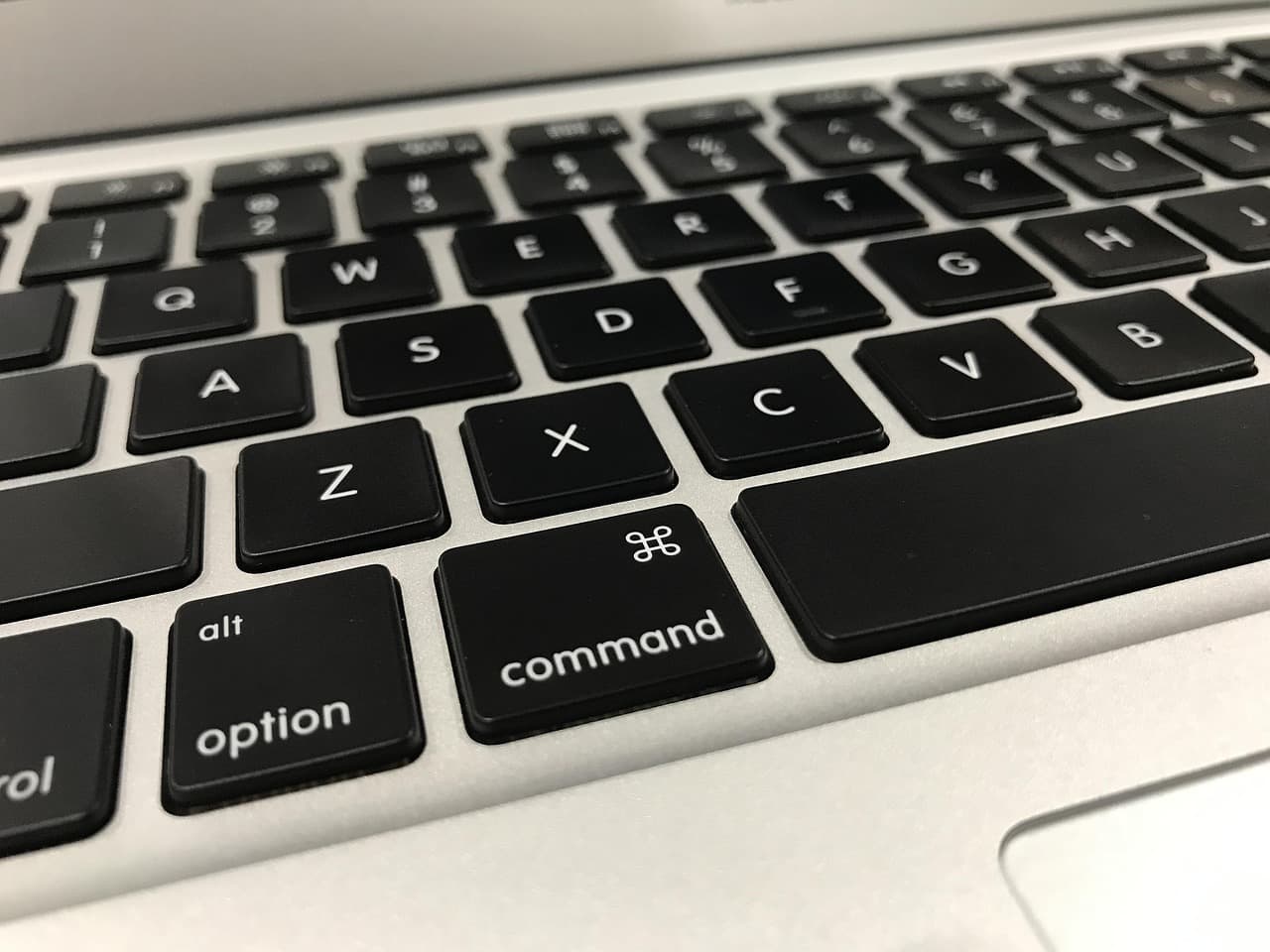
Tasks developers say to Lazur while in VS Code
These are the requests that fit the editor. Each one names what you say and what comes back. Keep them short. Lazur answers better when it can see the exact line, panel, or message on screen.
- 'What does this red squiggle mean?' Lazur reads the highlighted line and explains the error in plain words, out loud.
- 'Where is the Run and Debug button?' Lazur circles it and adds a label, so you find it without hunting.
- 'Walk me through creating a launch.json.' Lazur guides one click at a time and waits for each click.
- 'Remind me to push my branch before standup.' Lazur adds an Apple Reminders item with that text.
- 'Dictate a commit message here.' Hold fn and speak. Clean text lands at the cursor.
- 'Draft a pull request description from these changes.' Lazur drafts it from what is on screen and types it where your cursor sits.
- 'Research why our dev container build is slow on macOS.' Lazur runs the search in its own Chrome tabs and returns a summary and a report.
Notice what is missing from that list. Lazur does not commit, push, or merge for you. Those actions stay in your hands, which is where they belong for a change you have not reviewed.
Mistakes Mac developers make with VS Code and AI help
The Stack Overflow 2025 AI results put a number on the biggest risk. 66% of respondents named 'AI solutions that are almost right, but not quite' as their top frustration with AI tools. Only 3.1% highly trust AI output accuracy. 19.6% highly distrust it.
So read every suggestion before it lands. Check the diff. Run the tests. Then commit. A draft from Lazur or from any model is a starting point, not a verdict. The same rule applies to error explanations. Confirm them against the docs or the stack trace.
Other mistakes repeat across teams. Skipping the code command, then blaming the terminal. Running the debugger without preLaunchTask. Assuming Git is bundled. Working in a slow bind-mounted folder and never trying an isolated volume.
What the usage numbers say, and what they do not
The usage figures on this page are cross-platform. I did not find a survey that measures Mac developers alone. Read the 75.9% as a figure for all developers who answered the Stack Overflow survey, not as a Mac share.
The AI survey adds context. 47.1% of respondents use AI tools daily, and 17.7% use them weekly. Together that is 64.8%. Most developers in that survey already touch AI tools in a normal week, so a voice helper in the editor is not a niche idea.
The release notes add a small point. Version 1.145 describes no macOS-specific changes to menus, UI, or keyboard shortcuts. The current stable release is 1.145, published November 4, 2026.
Next steps for your VS Code setup on Mac
Do three things today. Install the code command. Learn ⇧⌘P and ⌘K ⌘S. Set up one launch.json for the project you touch most. Those steps cover most of the daily work in the editor.
Then check your setup against the list above. If the shell is slow, fix that before you touch extensions. If Dev Containers feel slow, try an isolated volume. If you use AI in the editor, read our AI assistant guide for developers and our AI dictation guide.
New to Lazur? You can download it for macOS, or check pricing before you decide. Cursor users can read our Cursor page for developers for shortcut and prompt tips.
Questions people ask
Why does code . fail in Terminal after I install VS Code?
The shell command has to finish first. Open the Command Palette with ⇧⌘P, run Shell Command: Install code and optionally copilot commands in PATH, then restart Terminal. Run code . again from a project folder.
Which VS Code build should I download on a Mac?
Download the Apple silicon build for Apple chips, or the Intel build for Intel Macs. The Universal build includes both, which helps if you move one copy between machines.
Is Git included with VS Code on Mac?
No. VS Code has built-in Git support, but Git must be installed separately. Install Git first, then open the folder that contains the .git directory. Source Control opens with ⇧⌘G.
Does VS Code still support macOS Big Sur?
Support for macOS Big Sur (11.0 and older) was deprecated starting with 1.105 in September 2025. Version 1.106 is the last release that supports Big Sur. Plan an OS update if you need newer releases.
Why is my first Dev Container build so slow?
The first build creates the image from scratch, so it takes the longest. Later opens are faster. If file work stays slow after that, bind mount overhead may be the cause. Try an isolated container volume for big folders.
Does Lazur click buttons or edit files in VS Code?
No. Lazur sees your screen while you hold ⌥⌘, points at controls, explains errors, and guides you one click at a time. It types text when you ask, but it does not click buttons, edit files, or operate other apps.
Where is the full list of VS Code shortcuts on a Mac?
Open Help > Keyboard Shortcut Reference. The docs describe it as a printable PDF. The official keybindings page lists ⌘K ⌘S for the Keyboard Shortcuts editor, but it does not list every shortcut, so check the PDF first.
Does Lazur run on Windows too?
Lazur runs on macOS, on Apple silicon and Intel Macs. Windows is planned, not available. This page still helps with VS Code on any system, but Lazur does not run on Windows yet.
What happens to my screen when I use Lazur?
Lazur listens and looks at the screen only while you hold the shortcut. Audio and the screenshot go to AI providers to produce an answer, and they are not stored. Content is never used to train AI models.
Sources
- Stack Overflow Developer Survey 2025 - Technology · Stack Overflow · checked 2026-11-06
- Stack Overflow Developer Survey 2025 - AI · Stack Overflow · checked 2026-11-06
- The State of C++ 2025 · JetBrains · checked 2026-11-06
- Visual Studio Code 1.145 release notes · Microsoft · checked 2026-11-06
- Keyboard shortcuts in VS Code · Microsoft · checked 2026-11-06
- Setup VS Code on macOS · Microsoft · checked 2026-11-06
- VS Code FAQ · Microsoft · checked 2026-11-06
- Developing inside a Container · Microsoft · checked 2026-11-06
- Source Control in VS Code · Microsoft · checked 2026-11-06
- Configure debugging in Visual Studio Code · Microsoft · checked 2026-11-06
Try Lazur free for 3 days
Hold a key and ask. Lazur sees your screen, points at the button and talks you through it, in any Mac app. No credit card.