
Chrome · for video editors
Chrome for video editors on Mac: browser editing tips, Clipchamp setup, and Lazur help
Use Google Chrome for browser video editing on a Mac. Clipchamp recommends the latest Chrome or Microsoft Edge, and it does not recommend Safari. Wide.video needs Chrome or another Chromium browser. This page covers setup, footage, trimming, export limits and privacy, plus how Lazur helps while you work in a Chrome tab.
You say“Where is the export button in this editor?”
Lazur · points at itLazur draws a circle and a label around the export button on your screen.
Quick answer
- Use Chrome or Edge for Clipchamp. Microsoft does not recommend Safari or Firefox for it.
- Relaunch Chrome before a project, not during an export. Find updates under More > Help > About Google Chrome.
- Give editing its own Chrome profile, with fewer extensions running in it.
- Check the export menu first. Personal accounts need a Microsoft 365 personal or family plan, or a premium plan, for 4K.
- Lazur points, guides, explains and drafts text. It does not click for you.
480p to 4K
export options for Clipchamp work or school accounts, per Microsoft's support page
How to edit a video in Clipchamp (Microsoft Support)4K
personal account export only with Microsoft 365 personal or family, or a premium plan
How to edit a video in Clipchamp (Microsoft Support)What video editors ask Lazur in Chrome
Hold ⌥ ⌘ in Chrome and say it.
“Where is the export button in this editor?”
Lazur draws a circle and a label around the export button on your screen.
Points at it · Chrome
“Walk me through trimming this clip, one click at a time.”
Lazur guides you one click at a time and waits for each click before it goes on.
Walks you through it · Chrome
“Why did this upload fail? Explain what to check first.”
Lazur reads the message on screen, explains it out loud and suggests what to check first.
Explains what's on screen · Chrome
“Draft a short caption for this clip in plain English.”
Lazur types the caption. You paste it into the editor's text box yourself.
Drafts it · Chrome
“Dictate a shot note for the interview.”
Hold fn and speak. Clean, formatted text lands at the cursor in any app.
Types what you say · Chrome
“Find the current 4K export rules for a personal account.”
Lazur runs research in its own Chrome tabs and returns a summary and a report.
Researches in the background · Chrome
“Remind me to check the export before I send it.”
Lazur adds an Apple Reminders item, so the check does not depend on your memory.
Handles the small stuff · Chrome
Most browser video editors on a Mac are web apps. They run in a Chrome tab, not in a desktop program you install. That changes three things. It changes which browser you open, how updates reach you, and where your footage goes. Chrome handles all three well once it is set up. Safari often does not, and Clipchamp says so in its own help pages.
Which browser to use for video editing on a Mac
Use Google Chrome. Microsoft recommends the latest desktop version of Microsoft Edge or Google Chrome for Clipchamp. It does not recommend Safari or Firefox. It also warns that Brave and other Chromium browsers may not work reliably. Mobile browsers are not supported for the desktop editor, so an iPad browser is not the place to cut a project.
- Google Chrome: the default choice for Clipchamp and Wide.video.
- Microsoft Edge: recommended by Microsoft for Clipchamp, and also Chromium, so Wide.video runs there too.
- Safari: not recommended for Clipchamp. Skip it for browser editors.
- Firefox: Wide.video says it does not work there, because it lacks features the app needs.
- Brave and other Chromium browsers: may work, but Microsoft warns they may not work reliably with Clipchamp.
Wide.video is listed as working in Chrome or another Chromium browser, such as Edge, Brave, Vivaldi or Opera. The Fast Company review does not give file size or resolution limits. Test your own files before you commit a client project to it.
Set up Chrome for video editing on a Mac
Start with updates. Chrome downloads updates in the background, then applies them after a restart. To apply a pending update, go to More > Help > About Google Chrome and select Relaunch. Do this before a project starts, not in the middle of an export.
If Chrome lives in your Applications folder, you can turn on automatic updates for all users from the same About page. Google's help page does not list a current Mac version number. Check the About page on your own Mac instead of trusting a version number from an article.
Relaunch closes every open tab. A render that runs in a tab stops when that tab closes. Plan the restart for the end of the day, or for a quiet moment between projects.
Chrome settings that matter for video work
Open Chrome > Settings or press ⌘,. Five areas matter for editing.
- System: leave Use graphics acceleration when available turned on. Previews and timelines draw on the graphics chip. If previews stutter, open chrome://gpu in a new tab to see what Chrome is using.
- Downloads: choose a folder you can find later. Turn on Ask where to save each file before downloading if you export to several folders.
- Performance: add your editor under Always keep these sites active. This stops Memory Saver from putting the editor tab to sleep while you work in other tabs.
- Privacy and security > Site settings: check the microphone and camera permissions. Editors ask for them when you record a voiceover.
- System Settings > Privacy & Security > Microphone: if Chrome never gets microphone access, check that it is allowed here, too.
Test before a real project. Import one short clip. Play it, scrub it, and export a small version. If all three work, the setup is ready.
Use a separate Chrome profile for editing
A profile is a separate Chrome window with its own bookmarks, extensions, history and sign-ins. Make one for editing. Keep personal mail, shopping and banking out of it. Each extension can read and change the pages you open, depending on the access it asks for. Fewer extensions means fewer things that touch your timeline.
Ad blockers and script blockers sometimes break an upload or a preview. If a preview stays blank, turn off the extension for that site first. Do not guess at the cause. Change one thing at a time and test after each change.
Keep one editor account per profile. A common mistake is signing in with one account, then switching to another in the middle of a project. You can open the right project and still find the wrong footage, or none at all.
Get footage into a browser editor on a Mac
Clipchamp imports media into My media. You can drag files into that panel, use the import button, or pull files from OneDrive. Dragging from Finder is the quickest route for files on your Mac. Keep a Finder window open beside the editor so you can see what you have.
Name files before you import. Use names like interview_take2 or broll_harbor_wide, so My media makes sense at a glance. Names are cheap. Hunting for an untitled file in a busy panel is not.
Here is a worked example. You have one interview file, a folder of B-roll, and one music track. Drag the interview first and let it finish. Then drag the B-roll in small batches. Add the music last. If one file fails, check that file before you retry the whole folder.
Upload speed depends on your internet connection, not on your Mac's chip. For a big import, plug into Ethernet or sit close to the router. Start the import before you step away from the desk, not after.
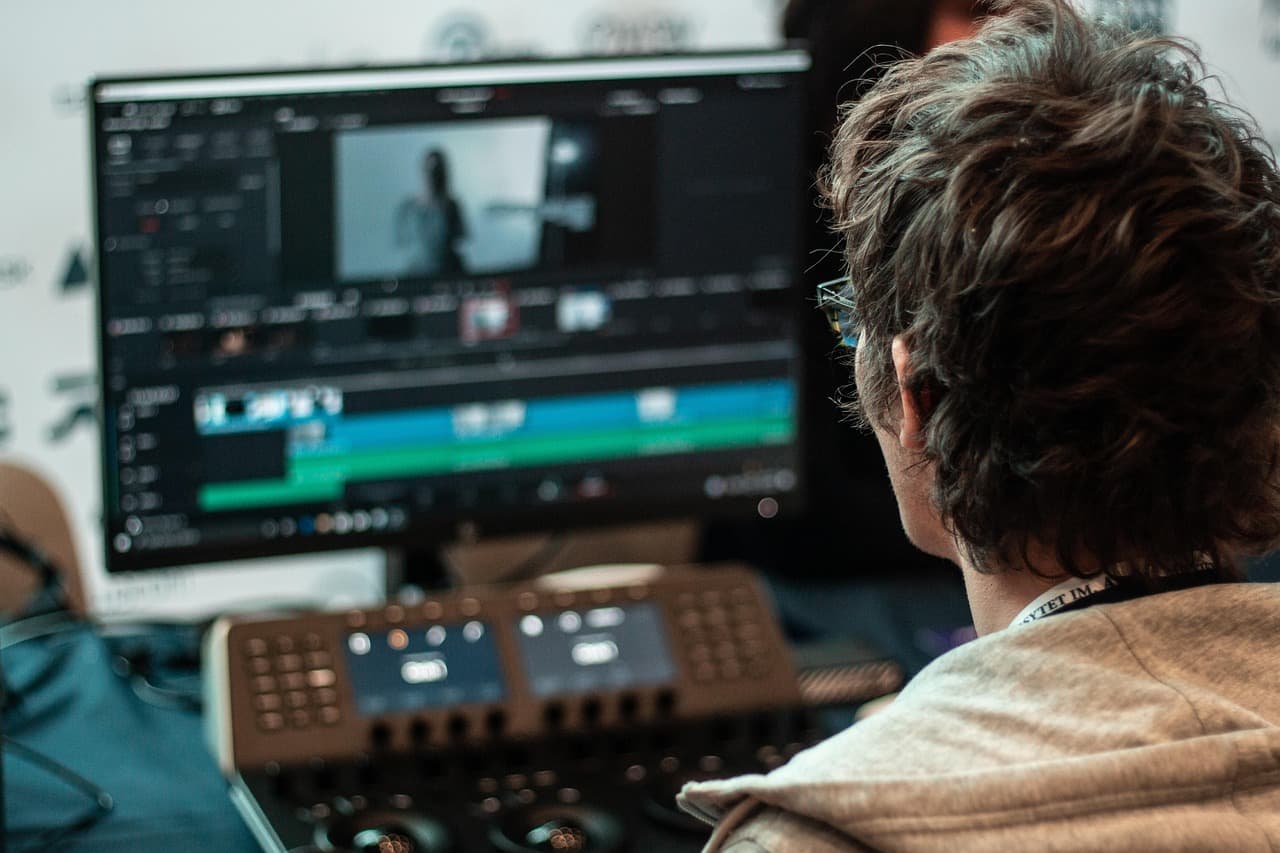
Trim, split and crop on the timeline
Clipchamp's documented editing tools are simple. Trim by dragging the edge of a clip. Split by moving the seeker to the frame you want, then clicking split. Delete removes what you select. Zoom changes how much time the timeline shows. Crop, fit, rotate and picture-in-picture sit on a floating toolbar. Effects, speed, volume and text live in a property panel.
Take a worked example. A clip starts with a long breath and dead air. Drag the left edge in until the first word sits at the start. Then find the cough in the middle, move the seeker to it, split, and delete the small piece. The timeline stays tidy, and the edit reads cleanly.
Check each join with audio. Play across the cut twice. A cut that looks fine on screen can click or jump in sound. If it does, move the split a few frames and try again.
Rotate, then check the preview. Sideways phone clips are common. A rotation that looks right in the timeline can still export at the wrong angle if you never look at the preview. Make that check part of your routine.
Keyboard shortcuts for Chrome while you edit
Chrome shortcuts keep your hands on the keyboard while the editor runs. These are the ones editors use most. They are standard Chrome shortcuts on a Mac. Check Chrome's menus if one does not respond on your machine.
| Shortcut | What it does in Chrome on a Mac |
|---|---|
| ⌘T | Open a new tab |
| ⌘⇧T | Reopen the tab you just closed |
| ⌘⌥← | Switch to the tab on the left |
| ⌘⌥→ | Switch to the tab on the right |
| ⌘ plus a number key | Jump to that tab in the tab strip |
| ⌘⌥L | Open the Downloads page |
| ⌘, | Open Chrome Settings |
| ⌘+ and ⌘- | Zoom the page in and out |
Pin your brief or your client's notes in a tab on the left. Right-click the tab and choose Pin. Then use ⌘⌥← to move back to the editor and ⌘⌥→ to move forward again.
Export settings and resolution limits
Clipchamp lists four export options for work or school accounts: 480p, 720p, 1080p and 4K. Personal accounts can export in 4K only if they hold a Microsoft 365 personal or family subscription, or a premium plan. Other personal accounts should not expect 4K. Open the export menu early, so you know what you will get.
A client asks for a 1080p file for a website. Set the export to 1080p, not 4K. Keep the tab open until the download lands in Downloads. Then select the file in Finder and press ⌘I to check its details.
A common mistake is waiting until the deadline to check exports. A missing 4K option on a personal account can change your plan for the whole project. Check on day one.
Some people report that browser exports depend on remote processing. A dropped connection can stop a render. Treat that as a reason to test one export early, and to keep the tab open until it finishes.
480p to 4K
export options for Clipchamp work or school accounts, per Microsoft's support page
How to edit a video in Clipchamp (Microsoft Support)4K
personal account export only with Microsoft 365 personal or family, or a premium plan
How to edit a video in Clipchamp (Microsoft Support)
Privacy: what happens to your footage in a browser editor
A browser editor works on files that leave your Mac. When you upload, your footage goes to the editor's servers. Incognito does not change that. Chrome's Incognito window stops Chrome from keeping history and cookies after you close it. It does not stop the editor from receiving your upload.
Before you upload client work, read the editor's privacy page and your client agreement. Some contracts limit where footage can go. If a contract is unclear, ask the client before you drag the file in.
Keep an original copy on your Mac or on an external drive. Do not treat the browser project as the only copy. A project that lives on someone else's server can be hard to recover if your account has a problem.
Common mistakes when editing in Chrome on a Mac
- Using Safari because it is already open. Clipchamp does not recommend it. Switch to Chrome before you import anything.
- Closing the tab while an export runs. Keep the tab open until the file appears in Downloads. Press ⌘⌥L to check.
- Relaunching Chrome during a render. Wait for the render to finish, then relaunch.
- Keeping every extension on. Turn off the ones you do not need for editing.
- Treating the browser project as your only copy. Keep originals in Finder.
- Editing from a phone browser. The desktop editor does not support mobile browsers.
How Lazur helps with browser video editing
Lazur is a voice assistant for the Mac. It lives in the notch. Hold ⌥ ⌘, which is Option plus Command, to ask about anything on screen. Lazur answers out loud. Ask where the export button is, and Lazur draws a circle and a label around it on your screen.
Ask how to trim a clip, and Lazur guides you one click at a time. It waits for each click before it goes on. You stay in control of the editor. Lazur does not click buttons, edit files or operate other apps for you.
Lazur can draft text too. Ask for a caption, a short description of a clip, or a title card line, and Lazur types it out. Hold fn to dictate clean, formatted text at the cursor in any app.
For a question that needs several sources, ask Lazur to research it. Research runs in Lazur's own Chrome tabs. It comes back with a summary and a report. Use that for questions like current export limits on your plan, then check the editor's own help page too.
Lazur listens and looks at the screen only while you hold the shortcut. Audio and the screenshot go to AI providers to answer, and they are not stored. Content is never used to train AI models.
Lazur runs on macOS, on Apple silicon and Intel. Windows is planned, not available. Lazur is not a plugin or add-in for Chrome, Clipchamp or any other app, and it has no partnerships with any app maker.
A first project in a browser editor, step by step
- Update Chrome and relaunch when no tab is busy.
- Open a profile for editing, and sign in to the editor there.
- Open the export menu and note the options your account shows.
- Import the interview, then the B-roll, then the music.
- Trim and split on the timeline. Play each join with audio.
- Export at the resolution you checked. Keep the tab open until the download finishes.
- Check the file in Finder with ⌘I, then keep the original footage on your Mac.
What to do next
Start with one short project, not a full edit. Run the steps above and see where the setup slows you down. Then decide whether voice help is worth it for your work. If you want a Mac helper that points and guides you inside Chrome, download Lazur. The trial starts when you first open the app and needs no credit card. Compare plans on the pricing page.
If your footage comes off a camera and sits in Finder first, read the Finder guide for video editors. It covers finding, previewing and organizing footage before you import it into any editor.
Questions people ask
Which browser should I use for Clipchamp on a Mac?
Use Google Chrome or Microsoft Edge. Microsoft recommends the latest desktop version of either browser. It does not recommend Safari or Firefox, so skip those for browser video editing.
Does Wide.video work in Chrome on a Mac?
Yes. Wide.video needs Chrome or another Chromium browser, such as Edge, Brave, Vivaldi or Opera. It does not work in Firefox, according to the Fast Company review.
How do I update Chrome on a Mac before I edit?
Go to More > Help > About Google Chrome and select Relaunch if an update is waiting. Relaunch closes your tabs, so do it between projects, not during an export.
Why can't I export 4K from Clipchamp?
Personal accounts get 4K only with a Microsoft 365 personal or family subscription, or a premium plan. Work and school accounts list 480p, 720p, 1080p and 4K. Check the export menu before you start.
Does Incognito keep my footage private in a browser editor?
No. Incognito stops Chrome from keeping history and cookies after you close the window. It does not stop the editor from receiving your uploads. Read the editor's privacy page first.
Can Lazur edit the video for me?
No. Lazur does not click buttons or operate other apps for you. It points at things, guides you one click at a time, answers out loud and drafts text. You do the editing.
Does Lazur work with Chrome on a Mac?
Lazur sees your screen, so it can point at anything in a Chrome tab. It is not a plugin or add-in for Chrome or any other app. It runs on macOS, on Apple silicon and Intel.
Is there a Windows version of Lazur?
Not yet. Windows is planned, not available. Lazur runs on macOS only for now.
Sources
- Which web browsers does Clipchamp support? · Microsoft Support · checked 2026-11-06
- How to edit a video in Clipchamp · Microsoft Support · checked 2026-11-06
- Update Google Chrome · Google Chrome Help · checked 2026-11-06
- Fast Company: best free online video editor (Wide.video) · Fast Company · checked 2026-11-06
Try Lazur free for 3 days
Hold a key and ask. Lazur sees your screen, points at the button and talks you through it, in any Mac app. No credit card.