
Photoshop · for photographers
Photoshop for photographers on Mac: a practical 2026 workflow, shortcuts and voice help
Photoshop for photographers on Mac is the editor you open after the RAW file is ready. Use it for masks, retouching, compositing and export. This guide covers setup, the workflow, the shortcuts and the slow spots, and shows where Lazur helps while you work.
You say“Where is the Camera Raw Filter in this file?”
Lazur · points at itLazur circles the Filter menu and labels Camera Raw Filter in its list, so you can open it yourself.
Quick answer
- Open RAW files in Adobe Camera Raw first, then move to Photoshop for layers, masks and retouching.
- Use adjustment layers, masks and Smart Objects so every edit can change later.
- Keep the scratch disk on your internal drive, and keep working files local, to avoid lag.
- Ask Lazur where a tool sits, or to walk you through a step one click at a time.
58%
of photographers in a Shotkit survey of 657 use Adobe Lightroom. The survey date is not stated.
Shotkit: What Photo Editing Software Do Photographers Use? (Survey)23.86%
of photographers who do not use Lightroom use Photoshop, the top choice in that group.
Shotkit: What Photo Editing Software Do Photographers Use? (Survey)56%
of the non-Lightroom users cite the Adobe subscription as their reason for not using Lightroom.
Shotkit: What Photo Editing Software Do Photographers Use? (Survey)US$19.99/mo
Adobe Photography plan, annual billed monthly, with Photoshop, Lightroom and 1 TB of storage.
Adobe Creative Cloud Photography planWhat photographers ask Lazur in Photoshop
Hold ⌥ ⌘ in Photoshop and say it.
“Where is the Camera Raw Filter?”
Lazur circles the Filter menu and labels Camera Raw Filter in its list.
Points at it · Photoshop
“Walk me through a Curves adjustment layer.”
Lazur guides one click at a time, and waits for each click before the next step.
Walks you through it · Photoshop
“What is this colored fringe on my cutout?”
Lazur explains mask-edge fringe and points at Enhance Edge in the Contextual Task Bar.
Explains what's on screen · Photoshop
“Draft a caption for this portrait in a calm tone.”
Lazur drafts text you can edit before you post or send it.
Drafts it · Photoshop
“Dictate the delivery note for the client folder.”
Hold fn and speak. Lazur types clean, formatted text at the cursor in any app.
Types what you say · Photoshop
“Remind me to check the scratch disk on Friday.”
Lazur adds the task to Apple Reminders with the day you named.
Handles the small stuff · Photoshop
“Research the license terms for this stock file.”
Lazur runs the search in its own Chrome tabs and comes back with a summary and a report.
Researches in the background · Photoshop
What Photoshop does for photographers on Mac
Photoshop is a pixel editor. It works with layers, masks, selections and retouching. Most photographers use it for jobs a catalog app does badly, such as removing objects, compositing a sky or cleaning up skin. Lightroom is the catalog and the fast first pass. Photoshop is where one photo gets the extra work.
The split shows up in the numbers. In a Shotkit survey of 657 photographers, 58% use Adobe Lightroom. Among the 276 who do not, Photoshop is the most common choice, at 23.86% of that group. The survey is self-selected and undated, so read it as a signal, not a census.
58%
of photographers in a Shotkit survey of 657 use Adobe Lightroom. The survey date is not stated.
Shotkit: What Photo Editing Software Do Photographers Use? (Survey)23.86%
of photographers who do not use Lightroom use Photoshop, the top choice in that group.
Shotkit: What Photo Editing Software Do Photographers Use? (Survey)56%
of the non-Lightroom users cite the Adobe subscription as their reason for not using Lightroom.
Shotkit: What Photo Editing Software Do Photographers Use? (Survey)US$19.99/mo
Adobe Photography plan, annual billed monthly, with Photoshop, Lightroom and 1 TB of storage.
Adobe Creative Cloud Photography planOpen RAW files through Camera Raw first
Photoshop cannot open a RAW file on its own. Shotkit makes this point, and it shapes the whole workflow. When you open a RAW file in Photoshop, Adobe Camera Raw opens first. Make the global changes there, such as exposure, white balance, lens correction and noise. Then click Open to send the image into Photoshop.
Camera Raw settings are not lost when you leave. If the photo lands in Photoshop as a Smart Object, double-click its thumbnail in the Layers panel to reopen Camera Raw. This is the cleanest way to change white balance after you have started retouching.
- Open the RAW file with File > Open. Camera Raw opens first.
- Set exposure, white balance, lens correction and noise in Camera Raw.
- Click Open to bring the image into Photoshop as a Smart Object.
- Make pixel edits on new layers above the base, never on the base layer.
- Save a master file with File > Save As (⇧⌘S) before you export anything.
Work non-destructively with layers, masks and Smart Objects
A non-destructive edit is one you can change later. Use adjustment layers for tone and color. Paint on layer masks, not on the pixels. Keep retouching on its own layer, so you can drop one step without losing the rest. Name each layer after its job, such as Dodge or Sky mask.
Smart Objects serve a similar purpose. A Smart Object keeps its source content, so you can resize, filter or reopen it later. Vagon says every Smart Object has to store its own source content. That is why a file with dozens of them grows fast. Use Smart Objects for the layers you reuse, not for every small tweak.
| Job | Menu path | Shortcut |
|---|---|---|
| Curves | Image > Adjustments > Curves | ⌘M |
| Hue/Saturation | Image > Adjustments > Hue/Saturation | ⌘U |
| Duplicate a layer | Layer > New > Layer via Copy | ⌘J |
| Camera Raw Filter | Filter > Camera Raw Filter | ⇧⌘A |
| Image size | Image > Image Size | ⌥⌘I |
| Export As | File > Export > Export As | ⌥⇧⌘W |
Keep Photoshop fast on large photo files
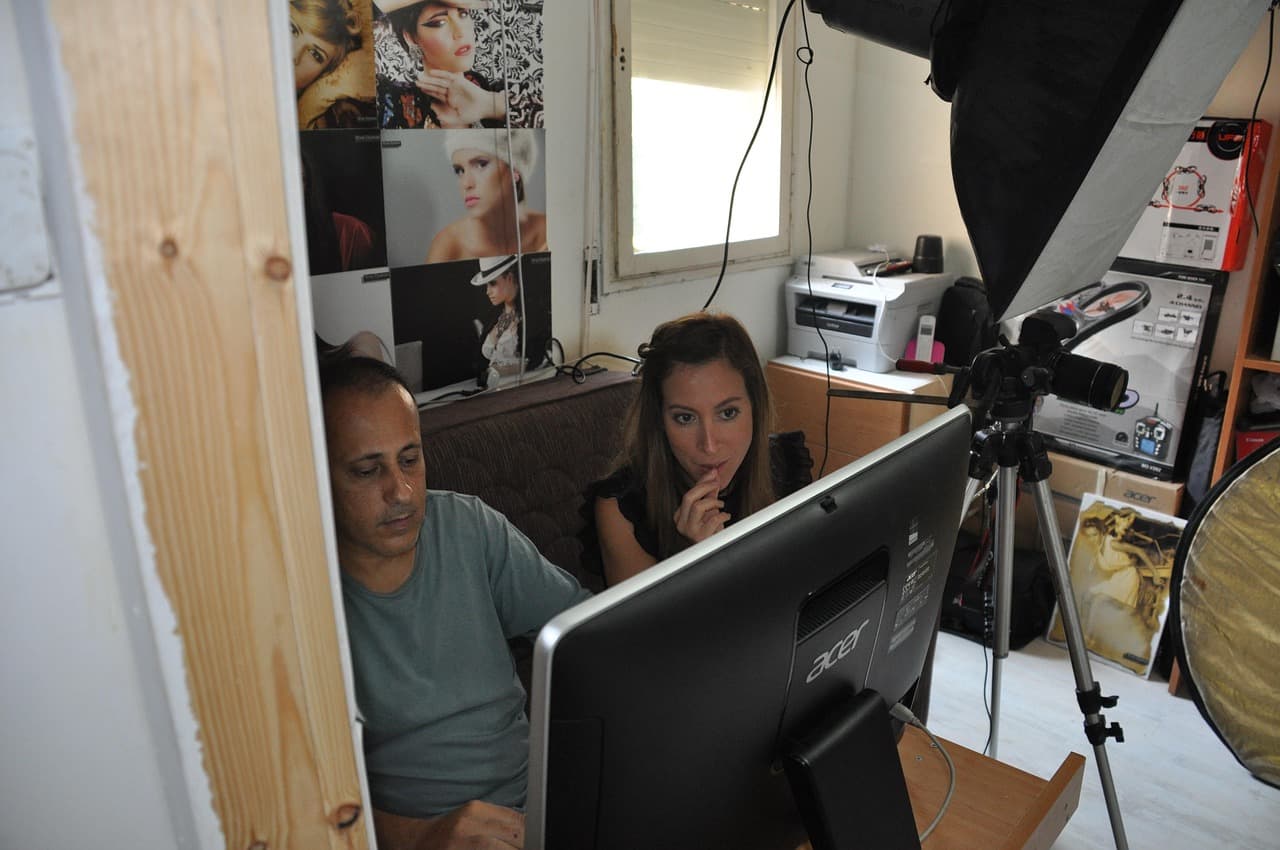
Two opinion pieces describe the same problem. Bulklayers says recent versions feel slower, with lag in brush strokes, delayed filters and general sluggishness. It names no version numbers. Vagon lists the usual causes: large canvases, many Smart Objects and layered effects, low RAM, a nearly full scratch disk, and network or old USB drives.
Start with the scratch disk. Open Photoshop > Settings > Performance and check the scratch disk list. Put the internal SSD first, with plenty of free space. Do not point it at a network share or an old USB stick. Keep the working files on the same drive too, so the app does not wait on a slow link.
A quick speed checklist
- Keep the scratch disk on the internal drive, with free space.
- Work from local files, not a network share or an old USB drive.
- Trim the canvas to the size you need before heavy filters.
- Close other heavy apps before a stack, panorama or big batch.
- Use Edit > Purge when the session slows and you do not need undo history.
- Check the scratch disk list again after you move or unplug a drive.

Generative Fill and Enhance Edge in a photo edit
Adobe says Generative Fill and Generative Expand are natively integrated into Photoshop. Use them for small repairs, like a stray branch or a little extra canvas at an edge. Be careful with faces, text, product labels and anything a client must trust as real. Check the result at actual pixels, with ⌘1, before you deliver.
The August 2026 Photoshop beta notes add Enhance Edge. It cleans color fringe along mask edges. You find it in the Contextual Task Bar, or by right-clicking a layer mask. It uses 20 generative credits. The notes come from a beta build, so the feature may change before your version ships.
Retouch and select without losing detail
Start with Select > Subject for a first mask. Adobe says selection and background removal improved for complex subjects. Then open Select > Select and Mask (⌥⌘R) to refine the edge. Check hair and sheer fabric at high zoom. Look at the mask on black and white backgrounds to spot halos.
For skin and product work, do the big shapes first. Build a neutral layer for dodge and burn, set its blend mode to Overlay or Soft Light, and paint on that layer. Painting on the photo itself is the most common mistake. You lose the original pixels, and you cannot judge the edit later.
When a mask or retouch fails
Hair against a bright sky fails on the first try. Refine the mask with a soft brush, then zoom to actual pixels with ⌘1 and check the edge again. For spot removal, use the Healing Brush on a blank layer with Sample All Layers turned on. That keeps the fix separate from the photo.
Batch actions and export for a big shoot
An action records steps you can replay. Open Window > Actions, and click the record button. Do the steps once on a typical file, then stop recording. Run the action on a whole folder with File > Automate > Batch. Use this for steps that repeat the same way on each file, such as a crop, a curve and a sharpen.
Manual brush work does not repeat cleanly. Keep manual masks out of an action. Record on a sample file with the same light and size as the batch. A common mistake is recording on the wrong layer, or on a file you will not use again.
- Open one typical file and start recording in Window > Actions.
- Stop recording, then test the action on a second file.
- Choose File > Automate > Batch and pick the action and the source folder.
- Set a separate destination folder so the originals stay untouched.
- Check the first few outputs before the batch runs on the rest.
Export for web, print and clients
Use File > Export > Export As (⌥⇧⌘W) for web and client files. Export As sets format, size and quality for each file. For a fixed long edge, change the size in Image > Image Size (⌥⌘I) first, on a copy. Keep the master PSD or TIFF, saved with File > Save As (⇧⌘S).
Name exports with the job, the date and the use, such as Smith-wedding-web or Smith-wedding-print. Keep the folder structure the same each time. Clients ask for the same files again, and a clear name saves you a return trip.
Color, sharpening and version checks before you deliver
Set the working color space before you start a job, then convert on export. Make your sharpening pass last, on a copy, at the output size. Sharpening at full size looks wrong after a web resize. Check the preview at the size your client will see.
The Adobe release notes we read cover a Photoshop (Beta) build from August 2026, and that page was truncated. The release notes page did not open for us, so we could not confirm the current stable version number. Check Photoshop > About Photoshop and the Creative Cloud app before you follow a menu path to the letter.
Mistakes photographers make in Photoshop on Mac
- Editing the original RAW layer instead of a copy or a Smart Object.
- Painting on the photo layer instead of a layer mask.
- Storing scratch files on a network share or an old USB drive.
- Recording an action on a file that does not match the batch.
- Exporting from the master without checking the preview at web size.
- Trusting a beta feature without checking the version on your Mac.
Where Lazur fits while you edit
Lazur is a voice assistant for the Mac. Hold ⌥⌘, which is Option and Command, to ask about anything on screen. Lazur answers out loud. Ask where a tool sits, and Lazur draws a circle and a label around it. Ask how to do a task, and it guides you one click at a time, waiting for each click.
Lazur does not click buttons, edit files or operate Photoshop for you. You still make every edit. Lazur points, explains, answers and drafts text. Hold fn to dictate a caption, a client note or a folder name at the cursor, in any app. Lazur is not a plugin or add-in for Photoshop or any other app.
Lazur listens and looks at the screen only while you hold the shortcut. Audio and the screenshot go to AI providers to answer, and they are not stored. Content is never used to train AI models. Lazur runs on macOS, on Apple silicon and Intel.
| What you say | What Lazur does | Capability |
|---|---|---|
| Where is the Camera Raw Filter? | Circles the Filter menu and labels the item | point |
| Walk me through a Curves layer | Guides one click at a time, waiting for each | guide |
| What is this fringe around my cutout? | Explains mask-edge fringe and points at Enhance Edge | explain |
| Draft a caption for this portrait | Drafts text you can edit before you post it | draft |
| Find the license terms for this stock file | Runs research in Chrome tabs and reports back | research |
Photoshop or Lightroom: which one should you pay for
Adobe's Photography plan lists Photoshop, Lightroom, Lightroom Classic and 1 TB of cloud storage. It costs US$19.99/mo when billed monthly on an annual plan, or US$239.88/yr prepaid. Check Adobe's pricing page before you buy, because plans and regions change.
The survey explains the subscription worry. Of the non-Lightroom users, 56% named the Adobe subscription as their reason for not using Lightroom. If you only need pixel work, price Photoshop alone and the bundle, then choose. Do not buy a plan you use for one job a month.
Next steps for this week
- Check your scratch disk path in Photoshop > Settings > Performance.
- Record one action on a sample file, then test it on a second file.
- Keep adjustment layers on the master file and export copies only.
- Try one voice task: hold ⌥⌘ and ask where a tool sits.
When you want voice help on the Mac, get Lazur. Plans and the trial are on the pricing page. For the Photoshop angle, see Lazur for Photoshop on Mac, or the Photoshop workflow for designers.
Questions people ask
Is Photoshop good for photographers on Mac?
Yes, for pixel work such as masks, retouching, compositing and export. Many photographers still do the first pass in Lightroom or Camera Raw. In the Shotkit survey, Photoshop was the top choice among photographers who do not use Lightroom, at 23.86% of that group.
Can Photoshop open RAW files on a Mac?
Not on its own. Photoshop needs Adobe Camera Raw to open RAW files. When you use File > Open on a RAW file, Camera Raw opens first, and you click Open to bring the image into Photoshop.
Which Photoshop shortcuts matter most for photographers?
Duplicate a layer with ⌘J, open Curves with ⌘M, open Image Size with ⌥⌘I, and open Export As with ⌥⇧⌘W. You can change any of them in Edit > Keyboard Shortcuts (⌥⇧⌘K).
Why is Photoshop slow on my Mac?
Common causes include large canvases, many Smart Objects, low RAM, and a full or slow scratch disk. Network drives and old USB drives add lag. Check the scratch disk list in Photoshop > Settings > Performance first.
Does Lazur edit my photos for me?
No. Lazur does not click buttons, edit files or operate Photoshop for you. It points at things, explains, guides you one click at a time and drafts text. You make every edit yourself.
Is Lazur a Photoshop plugin?
No. Lazur is not a plugin or add-in for any app, Photoshop included. It is a voice assistant for the Mac that lives in the notch. It does not operate Photoshop for you.
What does Enhance Edge cost to use?
Adobe's August 2026 Photoshop beta notes say Enhance Edge uses 20 generative credits. Generative Fill and Generative Expand are built into Photoshop. Check Adobe's pricing for the credit allowance on your plan.
Is Photoshop included in Adobe's Photography plan?
Yes. Adobe's Photography plan includes Photoshop, Lightroom, Lightroom Classic and 1 TB of cloud storage. It is listed at US$19.99/mo when billed monthly on an annual plan, or US$239.88/yr prepaid.
Sources
- Adobe Photoshop product page · Adobe · checked 2026-11-07
- Adobe Creative Cloud Photography plan · Adobe · checked 2026-11-07
- Shotkit: What Photo Editing Software Do Photographers Use? (Survey) · Shotkit · checked 2026-11-07
- Adobe Community: Release Notes - August 2026 · Adobe Community · checked 2026-11-07
- Bulklayers: Why Is Photoshop Getting Worse? An Unbiased Look at Adobe's Updates · Bulklayers · checked 2026-11-07
- Vagon: What Slows Down Adobe Photoshop Projects? · Vagon · checked 2026-11-07
Try Lazur free for 3 days
Hold a key and ask. Lazur sees your screen, points at the button and talks you through it, in any Mac app. No credit card.