
Photoshop · for designers
Photoshop for designers on Mac: daily workflow, shortcuts and voice help in 2026
Photoshop for designers on Mac is the desktop app for print prep, color correction, retouching, compositing and graphics for screens. The latest release verified for this page is Photoshop 27.8, reported in June 2026, and it needs macOS 14.0 or later. This guide covers setup, shortcuts, slow files and where Lazur fits while you work.
You say“Where do I add a Color and Vibrance layer for white balance?”
Lazur · points at itLazur draws a circle and a label around the menu item, then says where it sits.
Quick answer
- Photoshop 27.8 is the latest release verified for this page. It needs macOS 14.0 or later.
- Standalone Photoshop lists at $22.99 a month or $263.88 a year, according to Adobe's product page.
- Designers mostly use Photoshop for print prep, color, retouching, compositing and screen graphics.
- Reviewers mostly complain about cost, the learning curve and lag on big files. Setup and shortcuts help with two of them.
- Lazur sits beside Photoshop. Hold ⌥ ⌘ to ask about the screen, and hold fn to dictate text.
27.8
Latest Photoshop release verified for this page, reported in June 2026
CG Channel: Adobe releases Photoshop 27.8$22.99/mo
Standalone Photoshop on an annual plan billed monthly, in US dollars
Adobe Photoshop product page4.7/5
Average rating across 9,683 Photoshop reviews, some of them incentivized
Software Advice: Adobe Photoshop Reviews7.5 hrs/wk
Self-reported weekly time on tasks creative AI could improve, across workers generally
PPC Land: Adobe study on creative AI and wasted hoursWhat designers ask Lazur in Photoshop
Hold ⌥ ⌘ in Photoshop and say it.
“Where is Select Subject in this version?”
Lazur circles the menu item and labels it, so you find it once and stop hunting.
Points at it · Photoshop
“Walk me through removing this background, one step at a time.”
Lazur guides you one click at a time, waiting for each click. You make the click, then ask for the next step.
Walks you through it · Photoshop
“Explain why this file is so slow on my Mac.”
Lazur reads what is on screen, such as the file panels and open layers, and explains likely causes out loud.
Explains what's on screen · Photoshop
“Hold fn and dictate the client feedback into the brief doc.”
Lazur types clean, formatted text at your cursor, in whatever app is in front.
Types what you say · Photoshop
“Draft three alt texts for these social graphics.”
Lazur drafts the text and types it at your cursor when you ask it to.
Drafts it · Photoshop
“Set a timer for the export while I wait.”
Lazur starts a timer, so you can stop watching the progress bar.
Handles the small stuff · Photoshop
“Research what Harmonize needs from my layers.”
Research runs in Lazur's own Chrome tabs and comes back with a summary and a report.
Researches in the background · Photoshop
“Explain what Generative Upscale costs before I run it.”
Lazur explains what it can see on screen and says what to check on Adobe's pricing page.
Explains what's on screen · Photoshop
Most Photoshop sessions on a Mac come down to a few jobs. You prepare a print file, fix the color, clean up a retouch, cut out a subject or make a graphic for a screen. This guide sorts Photoshop by those jobs. It covers setup, shortcuts, slow files and where a voice assistant fits. If a deadline is close, read the print and compositing sections first.
27.8
Latest Photoshop release verified for this page, reported in June 2026
CG Channel: Adobe releases Photoshop 27.8$22.99/mo
Standalone Photoshop on an annual plan billed monthly, in US dollars
Adobe Photoshop product page4.7/5
Average rating across 9,683 Photoshop reviews, some of them incentivized
Software Advice: Adobe Photoshop Reviews7.5 hrs/wk
Self-reported weekly time on tasks creative AI could improve, across workers generally
PPC Land: Adobe study on creative AI and wasted hoursWhat designers actually do in Photoshop on Mac
Noble Desktop, a training vendor, lists five core Photoshop jobs for graphic designers. The list is not a survey, so treat it as a working map rather than data. Each job asks for different settings. Name the job before you open a file, and the settings get easier to pick.
- Print prep: set the document size and color mode before you place any artwork.
- Color correction: fix white balance, contrast and saturation on adjustment layers you can switch off.
- Retouching: clean skin, dust and product shots while the original pixels stay untouched.
- Compositing: combine photos, cutouts and light into one believable scene.
- Graphics for digital displays: social posts, banners and web images sized for a screen.
Those five jobs ask for different habits. A print file needs its color mode and resolution set before you place artwork. A retouch needs layers you can undo. A composite needs matched light across every piece. A screen graphic needs a clean export at the size the platform expects. Decide which job you are doing, then pick the settings for that job only.
Which Photoshop version to install on your Mac
The latest release verified for this page is Photoshop 27.8, reported by CG Channel in June 2026. It requires macOS 14.0 or later. The same release also runs on Windows 10 or later. Adobe's own technical requirements page was not available when this page was checked, so confirm the Mac minimums there before you update anything.
Adobe's Photoshop page says the app works on desktop, web and mobile. It also lists a free mobile app. For print and retouching, the desktop app on your Mac is the version this guide covers. The mobile app suits quick fixes away from your desk.
If your Mac is older, do not guess. Open About This Mac, compare the macOS version with the requirement, and update the system first if needed. Then update Photoshop. Changing one thing at a time tells you which update caused a problem, if one appears.
Set up Photoshop on your Mac before the first big file
Start with Photoshop > Settings > Performance. Turn on the graphics processor option if Photoshop lists it. Then open Photoshop > Settings > Scratch Disks. Point the scratch disk at your fastest internal drive, with free space on it. Photoshop uses that space as working memory when RAM runs short.
- Keep plenty of free space on your startup drive. Photoshop writes temporary data there.
- Do not use a slow external drive or a network share as a scratch disk.
- Quit heavy apps, such as video editors, before you open a large layered file.
- Install only the fonts and plugins you use. Each one adds load at launch.
- Update Photoshop and macOS one at a time, so you know which change helped.
External drives can work as scratch disks, but test one before a deadline. Open a big file, run three or four common steps, and time the wait. If the undo lag matches the internal drive, keep the setup. If it does not, move the scratch disk back to the internal drive.
Shortcuts every Mac designer should learn first
Shortcuts save more time than any single setting. The table lists default Photoshop shortcuts on a Mac with a standard keyboard. If yours differ, open Edit > Keyboard Shortcuts (⌥ ⇧ ⌘ K) and check. Learn the first four rows before anything else.
| Action | Mac shortcut | Why it matters |
|---|---|---|
| Undo the last step | ⌘ Z | Fastest way to test a change |
| Step back through history | ⌥ ⌘ Z | Walk back several steps at once |
| Free Transform | ⌘ T | Scale, rotate or skew one layer |
| Duplicate layer | ⌘ J | Keep the original before you edit |
| New layer | ⇧ ⌘ N | Start clean pixels above the photo |
| Create clipping mask | ⌥ ⌘ G | Limit a layer to the layer below it |
| Image Size | ⌥ ⌘ I | Check resolution before you print or export |
| Select and Mask | ⌥ ⌘ R | Clean up edges on a cutout |
| Merge visible layers | ⇧ ⌘ E | Make a flat copy for review |
| Zoom to fit | ⌘ 0 | Reset the view after zooming in |
Two habits are worth more than the table. Hold Space to pan with the hand tool without switching tools. Press [ and ] to make your brush smaller or larger. Those two keys save more time on a retouch than most menu tricks.
Shortcuts also help when you ask for help. Ask Lazur where a command lives, then try its key on the next file. Repeat that a few times, and the menu search gets shorter. Reviewers name tool placement as a pain point, so this habit pays off.
Why Photoshop feels slow on a Mac and what to change
Software Advice reviewers report lag with large or layered files, such as PSB files and documents with many Smart Objects. Many say Photoshop needs a powerful computer. Lag usually comes from three places: memory, disk speed and file structure. You can fix two of those three without buying a new Mac.
- Check memory pressure. Open Activity Monitor from the Utilities folder and watch the memory pressure graph. If it stays in the red, Photoshop is short on RAM.
- Trim the file. Delete hidden layers you no longer need, and merge groups you have finished.
- Shrink Smart Objects you do not edit. Open the full detail only when you need it.
- Lower the History States setting in Photoshop > Settings > Performance if memory is tight.
- Export a small copy for review, so clients open a light file instead of your master.
Here is a worked example. Take a layered poster with many Smart Objects and a few groups you finished weeks ago. Open Activity Monitor and check memory pressure. Then hide the groups you are not editing and time the next brush stroke. Save a copy, and keep the change that made the stroke feel faster.
Print prep, color and retouching on a Mac
Print work starts before you touch a pixel. Ask the printer for their color profile, bleed rules and file format. Some print shops want CMYK. Others want a PDF with the profile built in. Keep an RGB copy for screens, so you never have to convert the master back and forth.
For color, the Color and Vibrance adjustment layer now includes Temperature and Tint, according to PhotoshopCAFE. That means you can fix white balance without opening Camera Raw. Put the change on its own layer, so you can lower its opacity later if the skin looks off.
Masks keep retouching reversible. Adobe's product page lists Clarity & Dehaze and Grain as adjustment layers that can be masked. Add a mask, invert it with ⌘ I, then paint white where you want the effect. A jacket or a sky can take the effect without the face taking it too.
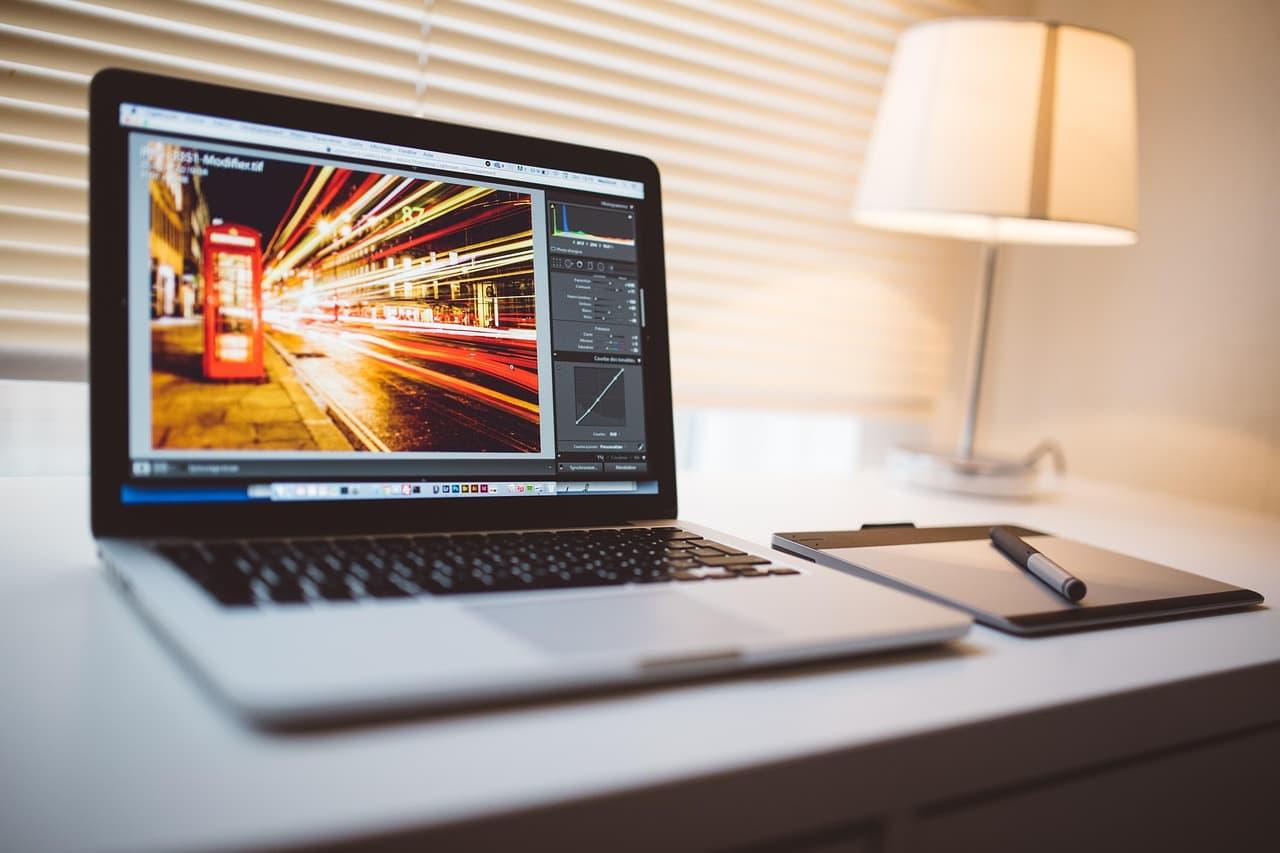
Retouching mistakes show up fast on a Mac display. Zoom to actual pixels with ⌘ 1 before you sign off a skin edit. Then zoom to fit with ⌘ 0 and check the whole frame. A fix that looks clean up close can look wrong at normal size, and the reverse is also true.
Remove backgrounds and build composites on a Mac
Remove Background and Select Subject were upgraded in the 2026 releases. PhotoshopCAFE says an on-device model is available, so the image does not have to go to the cloud. The same author reports better capture of fine edges. That comes from one author's tests, so check hair and fur on your own files.
- Duplicate the photo with ⌘ J, so the original stays untouched.
- Choose Select > Subject, then zoom in to check the edges.
- Choose Layer > Layer Mask > Reveal Selection to turn the selection into a mask.
- Refine hair or glass in Select and Mask (⌥ ⌘ R) if the edge looks off.
- Paint the mask with a soft brush to fix spots the tool missed.
Harmonize is now out of beta. PhotoshopCAFE says it matches color and lighting, creates shadows between composite layers, and offers three variations. The same author notes it can slightly reduce resolution. Run it on a copy, then compare the result with the original at full zoom.
Light is the usual giveaway in a composite. Look at where the light falls on the subject, then check the shadow under it. If the shadow points the wrong way, move the layer or repaint the shadow on its own layer. A clean cutout with the wrong light still looks pasted in.
Generative tools, credits and what they cost
Generate Image in Photoshop 27.8 supports custom models in beta. You train one on 10 to 30 of your own images. It also supports third-party models, including Google's Gemini family and Black Forest Labs' FLUX.2 Pro, according to CG Channel. A brand style model can help. It also raises a second question: know where your images go before you upload them.
Generative Upscale in the Image menu now adds Topaz Gigapixel and Topaz Bloom next to Firefly's upscaler, per PhotoshopCAFE. The author says the Topaz options use Generative Credits rather than a separate Topaz subscription, based on a comment reply. Confirm that on Adobe's pricing page before you run a big batch.
Generative tools change what a client sees, so keep a record. Keep the original photo, name the generated layer clearly, and note which model made it. That note helps when a client asks how an image was made, and it helps you roll back if the output is wrong.
What Photoshop costs and what designers complain about
Adobe's product page lists standalone Photoshop at $22.99 a month on an annual plan billed monthly, or $263.88 a year when you prepay. The prepaid price works out to less per month than the monthly option. Check Adobe's pricing page before you buy, since prices can change.
Subscription cost is the top complaint in the Software Advice reviews. Reviewers say the monthly fee is hard to justify for hobbyists and occasional users. The next complaint is the learning curve. Reviewers cite tool placement and keybindings, which is the problem the shortcut table is meant to ease.
Software Advice shows Photoshop at 4.7 out of 5 across 9,683 reviews. Most are five-star. Some reviews were incentivized, and several are cut short. Treat the score as a signal, not a verdict.
A UX case study by AHP Design quotes participants who say tools are 'difficult to locate or identify quickly.' One says 'Spending time searching for features is off-putting.' The study does not report how many people took part. Use it for direction, not as a headcount.
An Adobe-commissioned study, reported by PPC Land, asked 1,002 full-time US employees who use AI at work about creative tasks. They estimated 7.5 hours a week on tasks creative AI could improve. Those are self-reported estimates, and the study covers workers in general, not Photoshop users. Only 9% say they mostly use AI for creative work.
The reviews point to two fixes you control: learn the shortcuts, and keep files light. Neither one changes the price. If the subscription is the real problem, compare the plan options on Adobe's site against how often you open the app each month.
How Lazur helps you inside Photoshop on Mac
Lazur is a voice assistant for the Mac that lives in the notch. Hold ⌥ ⌘ to ask about anything on screen, and Lazur answers out loud. It looks at your screen only while you hold the shortcut. It does not click buttons or edit your files, and it is not a plugin for Photoshop. See Lazur for designers for more.
Ask where something is, and Lazur draws a circle and a label around it. Ask how to do something, and Lazur guides you one click at a time, waiting for each click. That split matters. Finding a control is a small job. Learning a whole workflow takes longer, and it suits a guided pace.
- Point: 'Where is Select Subject in this version?' Lazur circles it and labels it.
- Guide: 'Walk me through a layer mask.' Lazur guides you one click at a time, waiting for each click.
- Explain: 'Why is this file lagging?' Lazur explains what it sees on screen, out loud.
Hold fn to dictate clean, formatted text at the cursor in any app. Designers use this for client feedback, file names and alt text. Add brand names and product terms to your personal dictionary, so they come out right the first time. Snippets handle the export checklist you repeat on every job. If you also work in Figma, the Figma guide for designers covers that side.

A checklist to run before you export
Run this list before any export. It takes a minute, and it catches the errors that cost the most time. Keep it as a snippet, so you can dictate it or paste it into a brief.
- Name layers clearly, and delete hidden layers you no longer need.
- Check the document size with Image Size (⌥ ⌘ I) before you export.
- Confirm the color mode: CMYK for most print jobs, RGB for screens. Ask the printer if unsure.
- Look at every cutout edge at full zoom, not at fit to screen.
- Export web files with Export As (⌥ ⇧ ⌘ W). Keep the layered master saved as a separate file.
Export the web file and the print file from the same master, not from each other. Then a small fix to one never breaks the other. Name each export with the job, the size and the date, so the right file goes to the right place.
Mistakes designers make in Photoshop on Mac
- Working on the only copy. Duplicate with ⌘ J, or save a new version with ⇧ ⌘ S.
- Flattening too early. Keep layers until the client signs off.
- Editing the wrong Smart Object. Check which layer is selected before you paint.
- Ignoring the color profile until the printer calls. Ask for it at the start.
- Tuning many Performance settings at once. Change one, then test.
Trusting the first generative result is the last common mistake. Harmonize, Generate Image and the cutout tools all need a check at full zoom. Review their output the way you would review a junior designer's files.
Where to start this week
Start with setup. Then learn the first four shortcuts in the table. Pick one slow task and fix it before you change anything else. Download Lazur from the download page when you want voice help while you work. Compare plans on the pricing page before you commit.
Questions people ask
Is there a free version of Photoshop for Mac designers?
Adobe's Photoshop page lists a free mobile app. This page did not find a free desktop trial on the Adobe pages checked, so check Adobe's site. Standalone Photoshop lists at $22.99 a month on an annual plan billed monthly, or $263.88 a year prepaid.
Which macOS version does Photoshop 27.8 need?
CG Channel lists macOS 14.0 or later for Photoshop 27.8. Adobe's technical requirements page was not available when this page was checked, so confirm the minimum on Adobe's site before you update macOS or Photoshop.
Why is Photoshop slow on my Mac?
Large or layered files are the usual cause, according to Software Advice reviewers. Check memory pressure in Activity Monitor, move the scratch disk to a fast internal drive, and trim hidden layers. Change one setting at a time so you know what helped.
Can Lazur edit my Photoshop file for me?
No. Lazur does not click buttons, edit files or operate other apps for you. It points at controls, guides you one click at a time, answers out loud, and dictates text at your cursor when you hold fn.
Does Lazur send my screen to a server?
Lazur listens and looks at the screen only while you hold the shortcut. Audio and the screenshot go to AI providers so they can answer, and they are not stored. Content is never used to train AI models.
Is Harmonize safe for print files?
PhotoshopCAFE says Harmonize can slightly reduce resolution. Keep the original, run Harmonize on a copy, and check the result at full zoom before the file goes to a printer.
Does Lazur work with Photoshop on Windows?
Lazur runs on the Mac, on both Apple silicon and Intel models. Windows is planned, not available yet.
Is Lazur a Photoshop plugin?
No. Lazur is not a plugin or add-in for any app. It runs as a voice assistant on your Mac and does not operate Photoshop for you.
Sources
- Adobe Photoshop product page · Adobe · checked 2026-11-06
- CG Channel: Adobe releases Photoshop 27.8 · CG Channel · checked 2026-11-06
- PhotoshopCAFE: What's New in Photoshop 2026 (Full Release Overview) · PhotoshopCAFE · checked 2026-11-06
- Noble Desktop: How the Graphic Design Industry Uses Photoshop · Noble Desktop · checked 2026-11-06
- Software Advice: Adobe Photoshop Reviews, Pros and Cons · Software Advice · checked 2026-11-06
- AHP Design: UX Case Study, Adobe Photoshop Tools Panel · AHP Design · checked 2026-11-06
- PPC Land: Adobe study on creative AI and wasted hours · PPC Land · checked 2026-11-06
Try Lazur free for 3 days
Hold a key and ask. Lazur sees your screen, points at the button and talks you through it, in any Mac app. No credit card.