
Developers · problem and fix
How to use dictation on Mac: a step-by-step guide for macOS 27
To use dictation on a Mac, turn it on in System Settings > Keyboard > Dictation. Then start it with the Microphone key, a shortcut you set, or Edit > Start Dictation, and speak into any text field. This guide covers setup, the 30-second silence stop, the Voice Control clash, and the code cases where dictation struggles.
The short answer
- Turn Dictation on in System Settings > Keyboard > Dictation, then start it from the Microphone key, a shortcut, or Edit > Start Dictation.
- Dictation stops when it hears no speech for 30 seconds. Speak in short bursts and restart when you pause.
- Voice Control replaces standard Dictation while it is on. Turn it off if dictation does nothing.
- Dictation handles sentences well. Identifiers, file paths, and symbols need typing or a careful proofread.
- Apple's two guides describe on-device processing differently. Check your settings before you dictate sensitive work.
What dictating text on a mac costs you
Slow typing on long notes
Speech beat typing in a lab test. A Stanford-affiliated study on an iPhone 6 Plus measured English speech at 153 words per minute and keyboard entry at 52. That was a phone test, not a Mac test. Still, a 500-word update at 52 words per minute takes about 10 minutes to type.
Errors that reach the final text
Speech can leave more errors behind. The same study found an uncorrected error rate of 1.30% for speech and 0.79% for keyboard entry. On 1,000 words, that is about 13 errors against 8. Plan a proofreading pass before anything leaves your desk.
Hand and wrist strain
Repetitive strain injury is common among adults. In the 2021 National Health Interview Survey, 9.0% of men and 8.9% of women aged 18 or older reported one in the past 3 months. That figure covers all adults, not developers. Voice input can cut typing load, but it does not replace breaks or a decent desk setup.
Code that comes out wrong
Recognizers struggle with spoken code. A programming-by-voice study linked poor recognition to models trained on written text from sources such as web pages. Each misheard identifier costs a fix, and the fix often takes longer than typing the name would have.
Lost time on silent failures
When dictation does nothing, the text field gives you no error message. Voice Control, a clashing shortcut, or the wrong microphone can all look the same. Each check takes a minute, and a few failed attempts a day add up.
Privacy and policy risk
Apple's two guides describe on-device processing differently. If you dictate client, patient, or legal details without checking, you may break your employer's rules before you notice. Check where your words go before the first sensitive note.
Why it happens
Dictation was never switched on
Dictation has to be turned on in System Settings > Keyboard > Dictation. Until you do, the Microphone key and your shortcut do nothing useful. This is the first thing to check on a new Mac, and it takes one toggle to fix.
Voice Control has taken over
When Voice Control is on, Apple says you use Voice Control to dictate text. Standard macOS Dictation is not available while it runs. People turn on Voice Control for accessibility, a demo, or by accident, then assume dictation broke.
Shortcuts changed between guides
Apple's Catalina guide names Fn twice as the default. The macOS 27 guide names no default and points you to Keyboard settings. If you learned a shortcut from an old article, your Mac may not respond to it at all.
Silence ends the session
Dictation stops when no speech is detected for 30 seconds. A long think, a phone call, or a pause to read a message can end the session. Start it again with the same shortcut and continue from where you stopped.
Recognizers learned from prose
Built-in speech models handle everyday English well. They trip on identifiers, acronyms, file paths, and camelCase names. The programming-by-voice study points to training data drawn from written web text as one reason for those misses.
Model and language limits
Apple's on-device dictation model works in English, on Mac models with M3 and later, with at least 12GB of unified memory. Older Macs and other languages do not get that model, so the output quality can differ from what the guide describes.
Wrong microphone and noisy rooms
A wrong input device or a noisy room hurts every speech tool. Your Mac may listen to the built-in microphone while you speak into a headset. Background fans and echo add errors that look like software faults, but they are often setup problems.
How to fix it
These work with or without any app.
Turn Dictation on and test one sentence
Open System Settings > Keyboard > Dictation and turn Dictation on. Click into a blank note, say one full sentence, and read the result. If that works, your setup is fine, and the problem sits in one of the other causes.
Turn Voice Control off, or use its dictation
Open System Settings > Accessibility > Voice Control. If you need Voice Control for accessibility, dictate with its own tools instead of the standard Dictation. If you do not need it, turn it off and test again.
Set one shortcut and write it down
In Keyboard settings, pick a shortcut that no other app uses. Write it on a sticky note near your keyboard. Then use Edit > Start Dictation once to confirm the menu route still works in the app you use most.
Dictate in short bursts
Speak one to three sentences, then pause for a second and check the text. Continue after the check. This keeps each session short, stays clear of the 30-second silence stop, and makes errors easier to spot while the words are fresh.
Pick the right microphone and cut noise
Open System Settings > Sound > Input and pick the microphone you speak into. Watch the input level move while you talk. Turn down nearby fans if you can, and sit closer to the mic than to the room.
Type identifiers, dictate the rest
Dictate the sentence, pause, then type the function name, flag, or path. Your hands handle the hard symbols, and your voice handles the plain words. This split works better than fixing every misheard identifier one by one.
Proofread names, numbers, and links
Read every name, number, and URL before you send. The study found an uncorrected error rate of 1.30% for speech, so spot checks matter. Use a second read for anything that goes to a customer, a manager, or the public.
Check on-device processing before sensitive work
Open System Settings > Keyboard > Dictation and look for the setting that shows whether dictation is processed on device. If you cannot confirm it, do not dictate client, patient, or legal details. Ask your employer what the rules allow.
How to turn on dictation on Mac
Dictation is off until you switch it on. Setup takes one visit to a settings pane, and you only do it once. The steps below follow Apple's current Mac guide, which covers macOS 27.
- Choose Apple menu > System Settings.
- Go to Keyboard > Dictation, then turn on Dictation.
- Pick the dictation language you speak, if the pane offers one.
- Set a shortcut, or keep the Microphone key if your keyboard has one.
- Click into a blank note and say one full sentence to test it.
Apple's guide names three ways to start dictation: the Microphone key, the Dictation shortcut you set, or Edit > Start Dictation. The Edit menu route is the one to remember. It works when you forget your shortcut, and you can find it without any memory test.
Ways to start dictation and the Fn key default
Old articles often say to press Fn twice. Apple's older Catalina 10.15 guide does say that is the default. The current macOS 27 guide names no default at all. Check your shortcut in Keyboard settings and do not rely on a habit from an old guide.
Why dictation on Mac does nothing
When dictation does nothing, check three things in this order. First, confirm Dictation is on in System Settings > Keyboard > Dictation. Second, check that Voice Control is off. Third, check that your shortcut is not clashing with another app or a system setting.
Voice Control causes the most confusion. Apple says that when Voice Control is on, you use Voice Control to dictate text, and standard macOS Dictation is not available. The Voice Control switch sits in System Settings > Accessibility > Voice Control. Turn it off if you do not need it, then test again.
How long you can dictate in one go
Apple's current guide says you can dictate text of any length without a timeout. It also says dictation stops automatically when no speech is detected for 30 seconds. A long pause ends the session, even in the middle of a thought.
The Catalina guide suggested speaking no more than 40 seconds at a time for best results. That advice is older and does not appear in the current guide. Short bursts of one to three sentences still give you cleaner text and quicker fixes, so use them as your default.

Apple Intelligence dictation in macOS 27
The current guide describes an on-device model that improves spelling, punctuation, and capitalization. It works in English, on Mac models with M3 and later, with at least 12GB of unified memory. Check your model and memory in Apple menu > About This Mac before you assume you have it.
Is dictation on a Mac private?
Apple's two guides do not agree. The Catalina page says keyboard dictation sends words to Apple's servers for conversion. The macOS 27 guide says you can check in Keyboard settings whether dictation is processed on device and not sent to Siri servers. Check your own settings, then decide what you dictate.
If you handle client, patient, or legal details, follow your employer's rules before you dictate them. That applies to every dictation tool, not only the built-in one. When the rules are unclear, type the sensitive part yourself.
Built-in Dictation or a third-party Mac app
Built-in Dictation is free and already on your Mac. Third-party apps add offline models, cross-platform support, and extra features. They also add a new company you have to trust with your words. The table compares what each source says.
| Option | What its own source says | Check before you buy |
|---|---|---|
| Built-in Dictation | Free in macOS. Apple's guide covers start options, a 30-second silence stop, and no length timeout. | Keyboard > Dictation in System Settings |
| Superwhisper | Homepage says it works offline, and that offline models run well on Apple silicon Macs. Free tier includes a trial of Pro features for 3,000 words. | Pricing page could not be verified here, so check their pricing page |
| Wispr Flow | Pricing page lists Free at $0 and Pro at $15 a month or $12 a year. Dictation works on Mac, Windows, iOS, and Android. | Free plan has a weekly meeting limit |
| Dragon | Nuance announced in October 2018 that it was dropping Macintosh support for its products. | Check the vendor for current Mac support before you buy |
Dragon is the name many people remember. Nuance dropped Mac support in October 2018, and the Mac line later stopped with it. If an old article tells you to buy Dragon for your Mac, treat that advice as out of date.
Dictating code, identifiers, and file paths
Dictation is good at sentences. It is weaker at identifiers, file paths, and symbols. A study on programming by voice found that recognizers trained on written text from sources such as web pages struggle with spoken code. Adapting the language model cut the error rate by 27% relative to baseline on unseen spoken code.
That 27% comes from a research setting, not a switch you can flip on your Mac. Use it as a warning rather than a promise. Dictate the sentence around the code, then type the code itself. Your fingers are faster at symbols than your voice is.
- Dictate: pull request descriptions, Slack updates, Linear comments, and commit messages.
- Type: function names, flags, file paths, regular expressions, and anything full of symbols.
- Mix: a code comment where you dictate the explanation and type the variable name.
- Check: every number, URL, and person's name before you send.
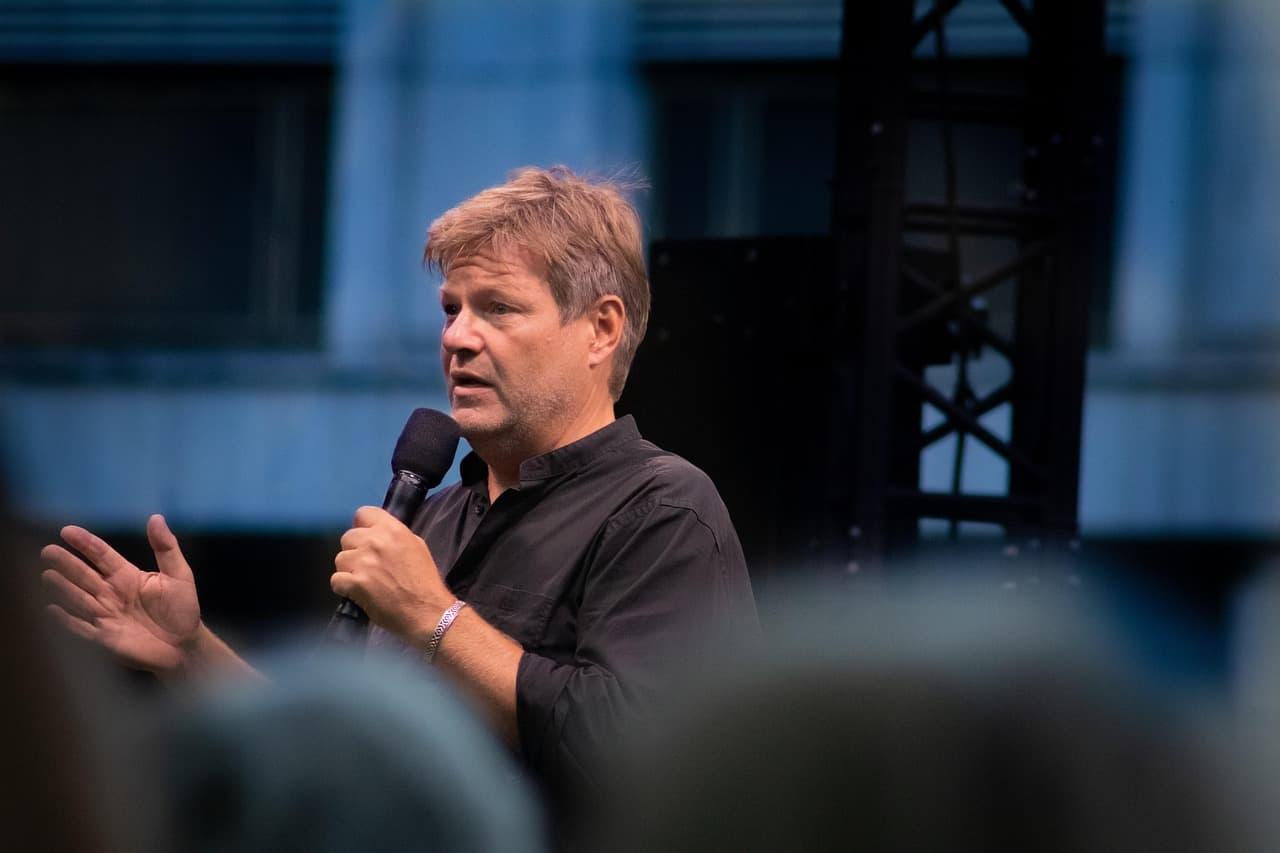
Worked example: a 150-word pull request description
Say your pull request description is 150 words. At the 153 words per minute speech rate from the phone study, that takes about 59 seconds. At the 52 words per minute keyboard rate, it takes about 173 seconds. The gap is about two minutes on one note.
The honest version is smaller. Add time to read the draft, fix a name, and check a link. The gain shrinks once you count reading and fixes. Measure it on your own work, and use the speaking vs typing test for a quick number for your speed.
2.93x
Speech input rate versus a keyboard on a touchscreen phone, English, 153 vs 52 words per minute
Comparing Speech and Keyboard Text Entry for Short Messages in Two Languages on Touchscreen Phones (arXiv:1608.07323)1.30%
Uncorrected errors left in final speech text, versus 0.79% for keyboard entry
Comparing Speech and Keyboard Text Entry for Short Messages in Two Languages on Touchscreen Phones (arXiv:1608.07323)9.0%
Men aged 18 or older who reported a repetitive strain injury in the past 3 months, 2021 survey
QuickStats: Age-Adjusted Percentage of Adults Aged 18 Years or Older With Repetitive Strain Injury, MMWR 202327%
Error rate reduction on unseen spoken code after adapting the recognizer, relative to baseline
Programming by Voice: Exploring User Preferences and Speaking StylesMistakes people make with dictation on Mac
- Dictating in a noisy room with the wrong microphone selected.
- Pausing for more than 30 seconds, then finding the session has ended.
- Leaving Voice Control on and assuming dictation is broken.
- Trusting the first draft. Names, numbers, and links need a read.
- Dictating client or patient details without checking the rules first.
- Dictating a code identifier, then fixing it letter by letter instead of typing it once.
Where Lazur helps with dictation
Lazur has its own dictation. Hold fn to dictate clean, formatted text at the cursor in any app. You also get snippets, a personal dictionary, and clipboard slots. Dictation is unlimited on both paid plans. See pricing for the plan details.
Lazur is not Apple's Dictation. It does not change your Keyboard settings for you, and it does not click buttons or operate other apps. Apple's built-in Dictation stays free and separate. Lazur is a voice assistant that lives in the notch, and dictation is one part of it.
The guiding part helps most when you cannot find a setting. Ask Lazur how to turn on Dictation, and it guides you one click at a time, waiting for each click. Ask where something is, and it draws a circle and a label around it on your screen.
Lazur listens and looks at the screen only while you hold the shortcut. Audio and the screenshot go to AI providers to answer you. They are not stored, and content is not used to train AI models. Lazur runs on macOS, on Apple silicon and Intel. Windows is planned, not available.
What to do next
Pick one app where you write all day, such as Slack or Cursor, and use dictation there for a week. Count the corrections each message needs. Then decide whether to keep it, and where. The AI dictation for developers guide covers pull requests, Slack, and Cursor prompts in more detail.
Faster with Lazur
Where Lazur helps with dictating text on a mac
Hold ⌥ ⌘ and say what you want. Lazur sees your Cursor window. Hold fn and talk. Clean, formatted text appears at your cursor.
- 1
Hold ⌥⌘ and talk
- 2
Hold fn and talk. Clean, formatted text appears at your cursor.
- 3
You stay in Cursor. Nothing to copy into a chat window.
More things to say in Cursor
- “Hold fn and dictate the standup update.”
- “How do I turn on dictation on my Mac?”
- “Where is the Voice Control setting?”
- “Why did my dictation just stop?”
Free for 3 days, then $18/month. Download for Mac
You say“Hold fn and say: add a comment saying why this retry waits two seconds.”
Lazur · types what you sayExample only. Lazur types the sentence at the cursor, and you read it before you save.
Typed at your cursor
// Wait two seconds before retrying so the upstream service has time to recover.
What developers say to Lazur for this
Each one is a single hold of ⌥ ⌘.
“Hold fn and dictate the standup update.”
Hold fn to dictate clean, formatted text at the cursor in any app. Snippets and a personal dictionary help with names and phrases you repeat.
Types what you say
“How do I turn on dictation on my Mac?”
Ask how to turn on Dictation, and Lazur guides you one click at a time, waiting for each click. It does not click for you.
Walks you through it
“Where is the Voice Control setting?”
Ask where a setting is, and Lazur draws a circle and a label around it on your screen.
Points at it
“Why did my dictation just stop?”
Hold Option and Command to ask about anything on screen. Lazur answers out loud, which helps when dictation stops and you want the reason.
Explains what's on screen
A plan you can start this week
- Day 1
Turn it on and test it
Open System Settings > Keyboard > Dictation and turn Dictation on. Pick one shortcut and write it down. Dictate three sentences into a blank note, then read them back and note what went wrong.
- Day 2
Use it for prose only
Dictate Slack replies, short emails, and Linear comments. Skip code for now. Count the corrections each message needs, so you have a real number instead of a feeling.
- Day 3
Fix the mic and the pauses
Check System Settings > Sound > Input and pick the right microphone. Practice speaking in bursts of one to three sentences, so you stay clear of the 30-second silence stop.
- Day 4
Try code comments
Dictate one comment per function in Cursor or VS Code. Type every identifier yourself. Note which words the recognizer missed, because those are the ones to type from now on.
- Day 5
Decide what to keep
Compare your time on a real note with the speaking vs typing test. Keep dictation where it saves time and corrections stay low. Drop it where it does not.
Questions people ask
How do I turn on dictation on a Mac?
Go to Apple menu > System Settings > Keyboard > Dictation and turn Dictation on. Then start it with the Microphone key, your shortcut, or Edit > Start Dictation in the app you are typing in.
Why does Mac dictation stop by itself?
Apple's current guide says dictation stops automatically when no speech is detected for 30 seconds. Start it again with the same shortcut and keep going. The same guide says dictation has no timeout for length.
What is the dictation shortcut on a Mac?
The current guide names no default shortcut. The older Catalina guide says the default is to press Fn twice. Check the shortcut you set in System Settings > Keyboard > Dictation, and use Edit > Start Dictation if you forget it.
Does Mac dictation work offline?
Apple's two guides describe processing differently, so check the on-device option in System Settings > Keyboard > Dictation. Superwhisper says its offline models run well on Apple silicon Macs, but that is a separate app with its own setup.
Can I dictate code on a Mac?
You can dictate comments, commit messages, and descriptions. Identifiers, file paths, and symbols are harder. A programming-by-voice study found an adapted model cut errors by 27% relative to baseline. That is a research result, so type the code and dictate the words around it.
Is Dragon available for Mac?
Nuance announced in October 2018 that it was dropping Macintosh support for its products. If you find an old guide telling you to buy Dragon for Mac, check the vendor before you spend money.
Can Lazur dictate into any app?
Hold fn to dictate clean, formatted text at the cursor in any app. Lazur types the text and answers out loud. It is not a plugin, and it does not click buttons or operate other apps for you.
Is dictated text sent to AI providers?
With Lazur, audio and the screenshot go to AI providers to answer while you hold the shortcut. They are not stored, and content is not used to train AI models. For built-in Dictation, check the on-device setting. For client or patient work, follow your employer's rules.
Sources
- Dictate messages and documents on Mac - Apple Support (current guide, macOS 27) · Apple · checked 2026-11-06
- Dictate your messages and documents on Mac - Apple Support (macOS Catalina 10.15 guide) · Apple · checked 2026-11-06
- QuickStats: Age-Adjusted Percentage of Adults Aged 18 Years or Older With Repetitive Strain Injury, MMWR 2023;72(19):538 · CDC / MMWR via PubMed Central · checked 2026-11-06
- Comparing Speech and Keyboard Text Entry for Short Messages in Two Languages on Touchscreen Phones (arXiv:1608.07323) · arXiv · checked 2026-11-06
- Programming by Voice: Exploring User Preferences and Speaking Styles · Author page (ACM DOI 10.1145/3571884.3597130) · checked 2026-11-06
- Wispr Flow Pricing · Wispr · checked 2026-11-06
- Superwhisper · Superwhisper · checked 2026-11-06
- DragonDictate - Wikipedia · Wikipedia · checked 2026-11-06
Fix dictating text on a mac with Lazur, free for 3 days
Hold a key and ask. Lazur sees your screen, points at the button and talks you through it, in any Mac app. No credit card.