
Word · for policy analysts
Word for policy analysts on Mac: track changes, redlines and tables for briefs in 2026
Word for policy analysts on Mac is the same Word you already use, with a few features that matter most for briefs, memos and comment letters. Turn on Track Changes, compare two drafts, and build a table of contents from heading styles. Then ask Lazur to point at the buttons you cannot find.
You say“Where is Track Changes in this document?”
Lazur · points at itLazur circles the Track Changes button on the Review tab and labels it on screen.
Quick answer
- Track Changes lives on the Review tab. Choose For Everyone or Just Mine before reviewers see the draft.
- Review > Compare > Compare Documents builds a redline in a new copy and leaves your originals alone.
- Style section titles with Heading styles, then use References > Table of Contents > Automatic style.
- Set Normal.dotm from inside Word, through File > Open, and back it up first.
- Lazur points, guides, dictates and explains. It does not click buttons or edit files for you.
10%
Share of creation time spent in Word, per Microsoft's 2023 Work Trend Index. This is Microsoft 365 usage data, not policy analysts.
2023 Work Trend Index: Will AI Fix Work?57%
Share of time the average employee spends communicating, such as meetings, email and chat, per the same index.
2023 Work Trend Index: Will AI Fix Work?Oct 13, 2026
Office 2021 for Mac reaches end of support. Security updates and technical support stop after that date.
Update Microsoft 365 or Office on your macOS or iOS deviceWhat policy analysts ask Lazur in Word
Hold ⌥ ⌘ in Word and say it.
“Where is Track Changes in this document?”
Lazur circles the Track Changes button on the Review tab and labels it on screen.
Points at it · Word
“Walk me through comparing this draft with last week's version.”
Lazur guides you through Review > Compare > Compare Documents, one click at a time, waiting for each click.
Walks you through it · Word
“Why is my table of contents missing the costs section?”
Lazur explains that the title is not styled as a heading, and points you to Home > Styles > Heading 1.
Explains what's on screen · Word
“Dictate the cost section, then tidy the headings.”
Hold fn and speak. Clean text lands at the cursor, and you apply heading styles afterward.
Types what you say · Word
“Draft a short cover note for the comment letter.”
Lazur types a draft you can paste into the document and then edit.
Drafts it · Word
“Find the latest Word for Mac release notes and summarize them.”
Lazur runs the search in its own Chrome tabs and returns a summary and a report.
Researches in the background · Word
“Set a timer while I check the figures against the source.”
Lazur starts a timer so you can check each figure against its source.
Handles the small stuff · Word
“What does Just Mine mean in the Track Changes menu?”
Lazur explains the choice in plain words and points you to the menu entry.
Explains what's on screen · Word
Most of your week is text that other people read closely. You draft a brief that a director signs. You write a memo that gets forwarded to people you never met. You send a comment letter that an agency reads line by line. Word is where those drafts live. This page covers the parts of Word for Mac that carry most of that work, and the points where Lazur helps.
What policy analysts write in Word all week
A typical policy analyst job description starts with writing. It lists policy briefs, white papers and regulatory comment letters that summarize findings into recommendations. The same listings mention modeling fiscal or economic impacts in Stata, R or Python, and answering ad hoc research requests under tight deadlines. That mix means your Word file often holds pasted numbers, tables and quotations from other sources.
- Policy briefs and white papers that turn findings into recommendations
- Regulatory comment letters, often written against a deadline someone else set
- Memos and fact sheets that busy readers skim before they read anything else
- Tables and figures pasted from statistical output
- Short replies to ad hoc research requests that arrive with tight timelines
Job descriptions tell you what the work includes. They do not tell you how long each task takes. Microsoft's 2023 Work Trend Index is a rough guide too. It found the average employee spends 57% of time communicating and 43% creating. Within creation, Word accounts for 10%. Heavy email users, the top 25%, spend 8.8 hours a week on email. Those figures come from Microsoft 365 usage data, not policy analysts, so treat them as a rough picture only.
Each of those jobs leans on a few Word features. Track Changes handles review. Compare Documents handles the version mess. Heading styles and a table of contents handle long reports. Normal.dotm handles the look your office expects. The sections below go through each one, with the menu path and the mistakes people make.
Turn on Track Changes before reviewers touch the draft
Track Changes shows every insertion and deletion. Reviewers see what they changed, and you see what they did. Turn tracking on before you send a draft out. If you forget, you get back a clean file with no record of edits. Then you have to guess what moved.
- Open the document and select the Review tab.
- Select Track Changes, then choose For Everyone or Just Mine.
- Edit as usual. Each change now appears as a revision mark.
- To stop tracking, select Track Changes again.
Use For Everyone when colleagues will mark up the file. Use Just Mine when you only want your own edits marked. Then decide how the changes look. Go to Review > Markup Options > Balloons and choose Show All Revisions Inline. Balloons suit a screen. Inline view suits a printout, because every change sits in the body text.
Track Changes does not protect text you paste in from a PDF. Copied PDF text lands as plain new text, with no record of where it came from. If a sentence came from a source, add a comment that says so, or retype the key figure and track it.
Compare two drafts into one redline
Your director sends back last week's draft with notes in an email. You also have today's version on your desktop. Compare Documents builds one file that shows what changed between them. It is the quickest way to answer the question every reviewer asks, which is what moved since the last round.
Microsoft's Compare Documents steps were written for Word 2019 for Mac. Its menu path also differs from the Review tab steps shown first. Check the Compare menu in your build before you follow the exact clicks. The logic stays the same.
- Open either draft in Word, then go to Review > Compare > Compare Documents.
- Choose the older file as the original document.
- Choose the newer file as the revised document.
- Click OK. Word creates a new copy with revision marks and leaves both originals unchanged.
Here is a worked example. Last week's fact sheet has a short background section and a placeholder for costs. Today's version adds a cost table and cuts a few paragraphs from the background. The compare file marks the table as an insertion and the cut paragraphs as deletions. Send that file to your reviewer, not the two raw drafts.
A common compare mistake is swapping the files. Then every new sentence looks deleted, and every deleted sentence looks new. Check which file is the original before you click OK. If one draft came from another template, clean up its formatting first. Formatting differences make the redline noisy.

Build a table of contents that updates by itself
A table of contents reads your headings. It does not read bold text or a bigger font. So the first job is to style every section title as a heading. Select the title, then go to Home > Styles > Heading 1. Use Heading 2 for the sections inside it.
Once the headings are styled, click where the contents should go. Choose References > Table of Contents, then pick an Automatic style. Avoid Manual styles. Word cannot build those from your headings, and it will not update them after you rewrite a section.
- Style each main section title with Home > Styles > Heading 1.
- Style subsections with Heading 2.
- Click where the table should go, then choose References > Table of Contents.
- Pick an Automatic style. Word builds the list from your headings.
- After you move or rename sections, update the table.
Missing entries usually mean a heading is not a heading. If a section never shows up, select its title and check the style in Home > Styles. A title that reads Normal will not appear in the table. Apply Heading 1 and update the table again. Bold text that looks like a heading fails for the same reason.
Long reports need the table and page numbers to agree. Check the table after your last edit, not before. Add page numbers once the structure is settled. How to add page numbers in Word on Mac covers that step.
Set Normal.dotm defaults without breaking them
Normal.dotm holds the default settings for new blank documents. If your office expects a specific font, spacing or heading style, change it once there. Every new document then starts that way. You stop fixing the same margins on every draft.
Open the file from inside Word. Go to File > Open, then choose Normal.dotm. Double-clicking the file in Finder creates a new blank document instead. That mistake wastes time, and it makes people think the change failed.
- Copy Normal.dotm to a safe place first. Microsoft advises backing up the file before editing.
- In Word, go to File > Open and select Normal.dotm.
- Set the font, paragraph spacing and heading styles you want. Then save and close.
- Open a new blank document to check that the defaults took.
Deleting, renaming or moving Normal.dotm resets it. Word recreates a fresh copy on the next launch. You lose your custom defaults, so the backup is not optional. A reset is the clean way back when a template edit goes wrong.
10%
Share of creation time spent in Word, per Microsoft's 2023 Work Trend Index. This is Microsoft 365 usage data, not policy analysts.
2023 Work Trend Index: Will AI Fix Work?57%
Share of time the average employee spends communicating, such as meetings, email and chat, per the same index.
2023 Work Trend Index: Will AI Fix Work?Oct 13, 2026
Office 2021 for Mac reaches end of support. Security updates and technical support stop after that date.
Update Microsoft 365 or Office on your macOS or iOS deviceMac Word limits that trip up shared work
Mac Word is not a full copy of Word for Windows. The gaps matter when a file leaves your machine. Some of the notes below come from a dated comparison page written about the Word 2011 era. Check whether each one still applies to your build before you plan around it.
| Feature | Mac Word | What to do |
|---|---|---|
| Font embedding | Not supported. Fonts embedded by Windows Word are ignored. | Install company fonts on each Mac that touches the file. |
| Network templates | Do not work reliably. | Copy the template to the My Templates folder on your Mac. |
| VBA macros | Markedly less capable than PC Word. | Test each macro on a Mac well before the deadline. |
| ActiveX controls | Not supported. | Use a different form, or open the file on a Windows machine. |
| Signed macro projects | Digital signatures and code signing are not supported, so signed projects will not open. | Ask the author for an unsigned copy, or test on Windows. |
| Font and color themes | No interface to create them. | Set fonts and colors by hand in the styles. |
Start with fonts. Mac Word does not support font embedding. Fonts that Windows Word embedded are ignored, so the file falls back to a substitute on a Mac. Install your company fonts on each Mac that touches the document. Keep a short list of them in the team folder.
Templates need the same care. Network templates do not work reliably in Mac Word. Copy the template to the My Templates folder on your Mac instead. Mac Word also has no interface for building font or color themes, so set those by hand.
Macros are the last risk. Mac Word's VBA is markedly less capable than PC Word's. Digital signatures and code signing are not supported, so a signed project will not open. If your team relies on a macro, test it on a Mac well before the deadline. Check the layout on the file your reader will open, not only on your screen.
Copilot in Word for Mac: check access first
Copilot in Word lists Word for Microsoft 365 for Mac among its platforms. It requires an eligible Microsoft 365 subscription, a Microsoft Copilot license, or both. An organization can also turn it off through its settings. In many offices, access is not a personal choice.
Microsoft's help page gives no minimum Mac version for Copilot in Word. Ask your IT team whether it is switched on for your account before you plan a draft around it. Do not assume a personal subscription works on a work Mac.
Copilot in Word is a Microsoft feature. Lazur is a separate voice assistant for the Mac. Lazur is not a plugin or add-in for any app, and it has no partnership with any app maker. Use each tool for what it does well.
Word updates and Office versions in 2026
The latest Word for Mac entry in Microsoft's release notes is version 16.114.3, Build 26102720, released Oct 27, 2026. Its Word section lists only quality and performance improvements. The October 14, 2026 release listed 13 Word security updates and no Word feature changes.
Check your version with Word > About Word. Updating Office on a Mac requires macOS 12 Monterey or later. If your Mac is older, the update may not be available at all.
- Office 2021 for Mac reaches end of support on Oct 13, 2026.
- After that date, it stops receiving security updates and technical support.
- From July 13, 2026, some older systems can open and print files but cannot edit, save or create them.
- To update Office on a Mac, you need macOS 12 Monterey or later.
Where Lazur fits while you draft
Lazur lives in the notch on your Mac and works across apps. Hold ⌥⌘, Option and Command together, to ask about anything on screen. Lazur answers out loud. Ask where a button is, and Lazur draws a circle and a label around it on your screen.
Ask how to do something, and Lazur guides you one click at a time. It waits for each click before it moves on. Lazur does not click buttons, edit files or operate other apps for you. You keep your hands on Word, and you stay in control of every change to the document.
Describe the goal, not the menu. Say 'compare this draft with last week's version' rather than 'find the compare menu.' Lazur can then guide you to the right path in your build. That matters when menus shift between versions.
Dictation for memos and briefs
Hold fn to dictate clean, formatted text at the cursor in any app. Dictation is included with Lazur, and it is not the headline feature. It is still useful for first drafts. Talking through a rough section can put words on the page sooner than typing them. You clean up after. You can check your own pace with the typing speed test and the speaking versus typing test.
- Add agency acronyms and program names to your personal dictionary before a big draft.
- Save boilerplate, such as your office disclaimer, as a snippet.
- Use clipboard slots for sources you paste again and again.
- Dictate the rough version first, then apply heading styles afterward.
Dictation does not replace a careful read. Speech tools make small mistakes with names, dates and figures. Check every number against its source before the draft leaves your desk. A wrong figure in a comment letter is hard to take back.
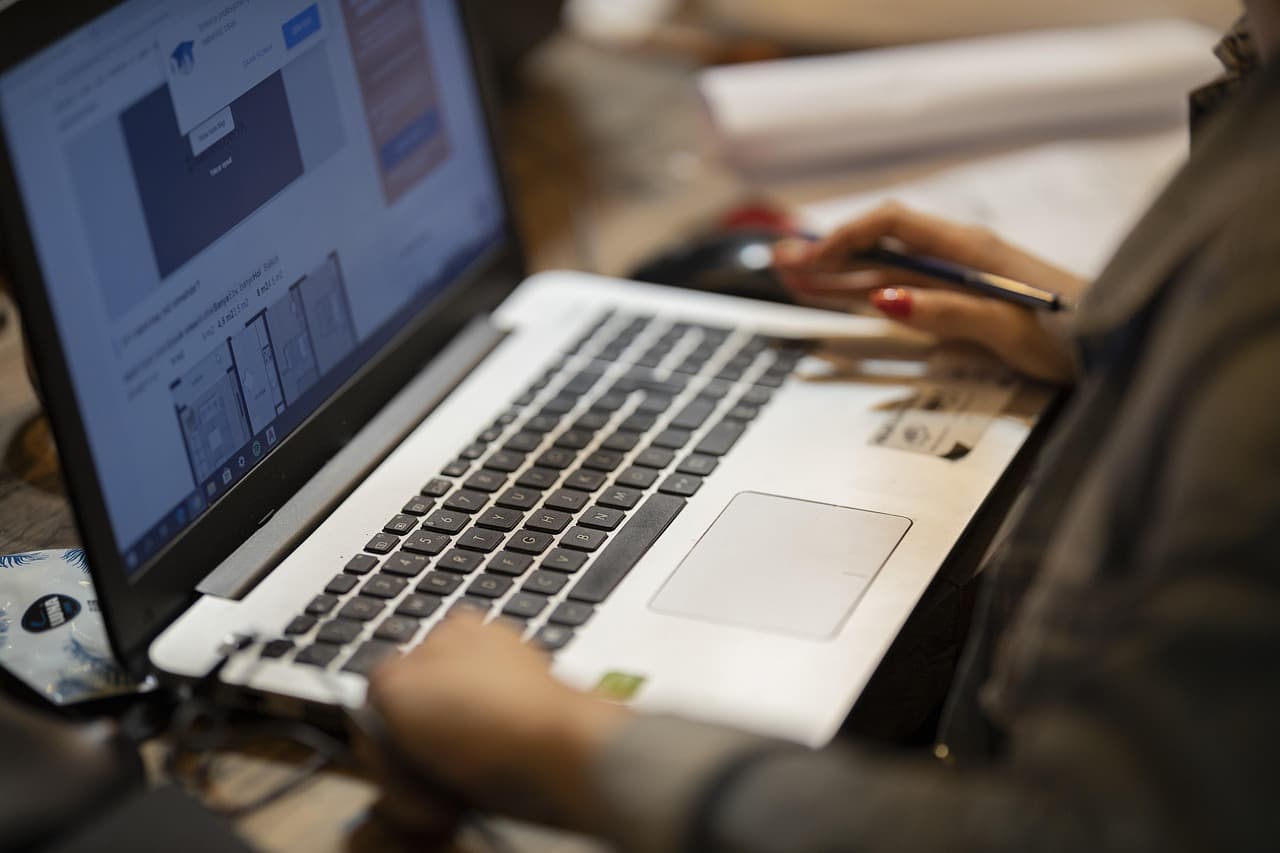
Pasting tables and figures from statistical output
Statistical output rarely pastes cleanly. Copy a table from Stata, R or Python output, and Word may bring its font and spacing with it. Use Edit > Paste Special and choose the format you want. Plain text keeps the file light. A table keeps the rows you can edit.
Wide tables break page layouts. If one table needs a sideways page, insert a section break so only that page turns. The steps are in how to insert a section break in Word on Mac. Keep the rest of the brief in portrait.
Research and fact checks without losing your place
Background research runs in Lazur's own Chrome tabs through the Lazur for Chrome extension. It comes back with a summary and a report. That lets you keep writing while the search runs. It helps when a reviewer asks for one more source.
Treat the summary as a lead, not a source. Open the pages it cites and read the claim in context. Only then put a link or a number in your draft. A reader who asks where a figure came from deserves a real answer. A summary cannot give one.
A worked afternoon on a comment letter
Consider a comment letter due the same day. The draft arrives with Track Changes on, because a colleague set it that way. You compare it with your Friday version to see what moved. You reply in the body text using Show All Revisions Inline. You paste two tables with Paste Special and dictate the recommendations.
Before you send, check the table of contents, the page numbers and the header. Then save a PDF so the layout reaches the agency as you intended. The steps are in how to save as a PDF in Word on Mac.
Mistakes policy analysts make in Word
- Leaving Track Changes off, then sending a clean file back to a reviewer.
- Comparing the drafts in the wrong order, so every change reads backward.
- Formatting section titles by hand instead of applying Heading styles.
- Typing a manual table of contents that never updates.
- Double-clicking Normal.dotm in Finder, then wondering why nothing changed.
- Sending a brief in a font the reader does not have installed.
- Trusting a research summary without opening the source it cites.
Each mistake looks small on the day. Most of them show up later, in front of a reviewer. Fix the habit once, and the next draft starts clean.
Privacy when Lazur can see your screen
Lazur listens and looks at the screen only while you hold the shortcut. Audio and the screenshot go to AI providers so they can answer you. They are not stored. Content is never used to train AI models.
Unpublished findings and internal drafts can be sensitive. Check your office rules before you ask about a document marked for internal review. Hold the shortcut only while you need help, and let go when you are done.
Where to go next in Word
Start with how to apply heading styles in Word on Mac if your long reports still have manual titles. Then read how to insert a table of contents in Word on Mac and how to compare two documents in Word on Mac.
For shared files, read how to add a comment in Word on Mac and how to create a template in Word on Mac. When you want to try Lazur, the download page and the pricing page show the options.
Questions people ask
Is Word for Mac different from Word on Windows for policy work?
Yes, in a few places that matter for shared files. Mac Word does not support font embedding, and network templates do not work reliably. Its VBA is markedly less capable, and ActiveX is not supported. The Track Changes, Compare Documents and table of contents tools are on the Mac too, with menu paths that may vary by build.
How do I turn on Track Changes in Word on Mac?
Select the Review tab, then select Track Changes. Choose For Everyone or Just Mine. Select Track Changes again to turn it off. Set Review > Markup Options > Balloons > Show All Revisions Inline if you want changes shown inside the text.
Why is my table of contents missing a section?
The section title is probably not a heading. Select the title and apply Home > Styles > Heading 1. Then click the table and update it. Manual styles will not build from your headings, so use an Automatic style.
Why did nothing change when I double-clicked Normal.dotm?
Double-clicking the file in Finder creates a new blank document. Open Word first, then go to File > Open and choose Normal.dotm. Back up the file before you edit it. Deleting or moving it resets the defaults.
Does Lazur click buttons in Word for me?
No. Lazur does not click buttons, edit files or operate other apps. It can circle a button and label it, or guide you one click at a time while it waits for each click. You do the clicking.
Is Copilot in Word included with Word for Mac?
Not automatically. Copilot in Word needs an eligible Microsoft 365 subscription, a Microsoft Copilot license, or both. An organization can disable it. Microsoft's help page gives no minimum Mac version, so ask your IT team.
Which Office version stops getting security updates?
Office 2021 for Mac reaches end of support on Oct 13, 2026. After that date it stops receiving security updates and technical support. Check your version with Word > About Word.
Can Lazur see my document all the time?
No. Lazur listens and looks at the screen only while you hold the shortcut. Audio and the screenshot go to AI providers to answer you and are not stored. Content is never used to train AI models.
Sources
- Release notes for Office for Mac · Microsoft Learn · checked 2026-11-08
- Update Microsoft 365 or Office on your macOS or iOS device · Microsoft Support · checked 2026-11-08
- Track changes in Word · Microsoft Support · checked 2026-11-08
- Change the default settings for new documents · Microsoft Support · checked 2026-11-08
- Compare and merge two versions of a document · Microsoft Support · checked 2026-11-08
- Insert a table of contents · Microsoft Support · checked 2026-11-08
- Welcome to Copilot in Word · Microsoft Support · checked 2026-11-08
- 2023 Work Trend Index: Will AI Fix Work? · Microsoft WorkLab · checked 2026-11-08
- Policy Analyst Job Description, Salary & Career Outlook · jobdescription.org · checked 2026-11-08
- Word:mac, Differences between Win and Mac Word · wordmvp.com · checked 2026-11-08
Try Lazur free for 3 days
Hold a key and ask. Lazur sees your screen, points at the button and talks you through it, in any Mac app. No credit card.