
Photoshop · for illustrators
Photoshop for illustrators on Mac: shortcuts, layers and voice help in 2026
Photoshop for illustrators on Mac runs the same core tools as the Windows version. The Mac work is in shortcuts, performance settings, and a tidy layer stack. Start there, then use the tips below to keep your drawing fast and your files easy to fix.
You say“How do I turn this selection into a shape?”
Lazur · walks you through itLazur circles the Paths panel, then waits for each click. You make the work path, set the tolerance, and add the fill.
Quick answer
- Photoshop 27.6, released in April 2026, needs macOS 14.0 or later. Check your Mac before you update.
- Set Performance, grid and brush settings once. Then keep your layer stack short.
- Turning a selection into a shape takes about five separate steps. Plan for that in your workflow.
- Big multi-artboard files can lag. Split large jobs into separate files when you can.
- Hold ⌥⌘ and ask Lazur where a control is. It circles the control and labels it on your screen.
US$22.99/mo
Standalone Photoshop on an annual plan billed monthly, per Adobe's product page
Adobe Photoshop product pagemacOS 14.0
Minimum macOS for Photoshop 27.6, released in April 2026
CGChannel: Adobe releases Photoshop 27.65 steps
Steps a feature request lists to turn a pixel selection into a shape
Adobe Community: Photoshop needs an update refresh to its interfaces and routines30+ seconds
One user's report, upwards of 30 seconds, to move items between three 4K artboards
Adobe Community: Painfully slow Photoshop artboardsWhat illustrators ask Lazur in Photoshop
Hold ⌥ ⌘ in Photoshop and say it.
“Where is the Paths panel?”
Lazur draws a circle and a label around the Paths panel on your screen.
Points at it · Photoshop
“How do I turn this selection into a shape?”
Lazur guides you through the steps one click at a time and waits for each one.
Walks you through it · Photoshop
“What does Color Range do here?”
Lazur explains the sampling options out loud while the dialog stays open.
Explains what's on screen · Photoshop
“Why is my brush lagging?”
Lazur looks at the screen and suggests the Performance setting and layer count to check first.
Explains what's on screen · Photoshop
“Write a short caption for this piece for my portfolio.”
Lazur drafts a caption and types it where your cursor sits. You edit it before you post.
Drafts it · Photoshop
“Remind me to export the proof before my client call.”
Lazur adds a reminder to Apple Reminders so the export is not missed.
Handles the small stuff · Photoshop
“Find three reference palettes for a warm autumn look.”
Lazur runs the research in its own Chrome tabs and returns a summary and a report.
Researches in the background · Photoshop
“Dictate a file name with the client code.”
Hold fn and speak. Lazur types clean text at the cursor in any app.
Types what you say · Photoshop
What illustrators do in Photoshop on Mac
Adobe's Photoshop page lists Generative Fill, Rotate Object, Harmonize, nondestructive adjustment layers, improved Selections, and a faster Remove Tool. It also points vector illustration to Illustrator. So Photoshop fits painting, texture, color correction, and raster cleanup best. No rigorous study shows how illustrators split their time between tools. A 2025 report from Hireillo surveyed 1,500 illustrators, but it covers income and mental health, not software. The workflow below comes from Adobe's feature list, April 2026 release coverage, and recurring forum complaints.
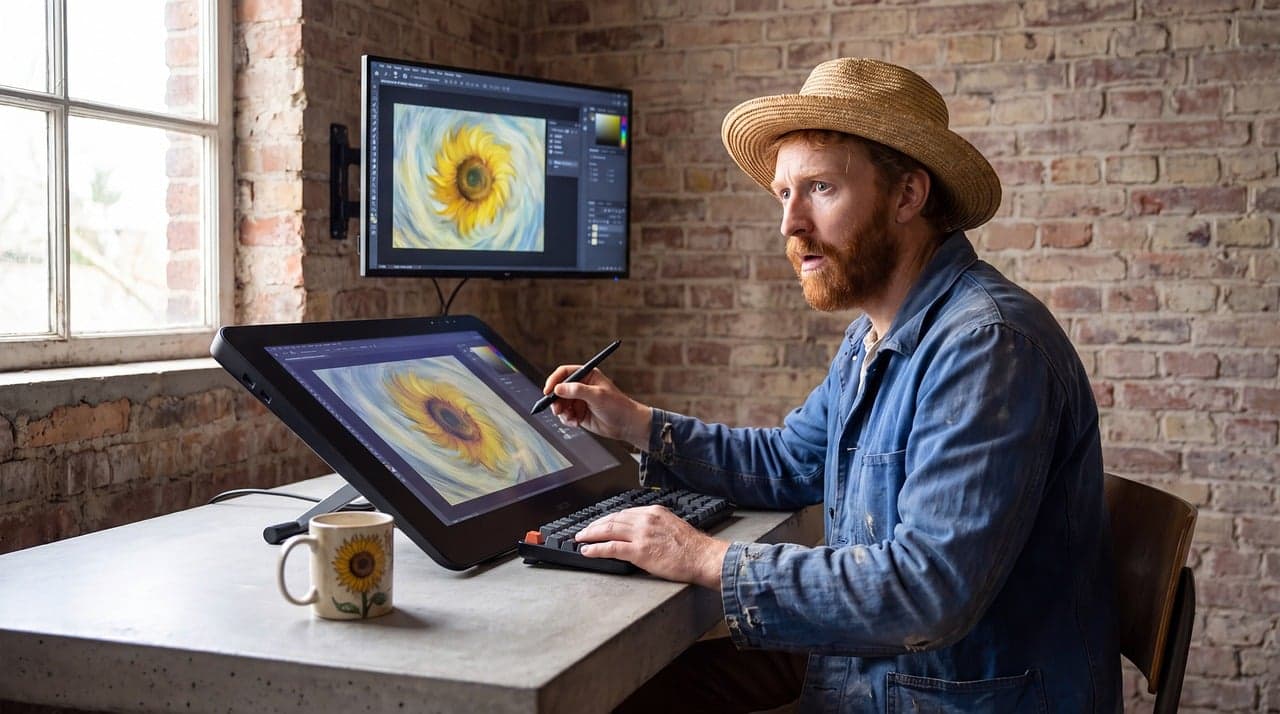
Set up Photoshop for drawing before your first stroke
Start in Photoshop > Settings > Performance. Confirm that Use Graphics Processor is on. Leave the memory slider alone until you know you need to change it. Forum users with Apple silicon Macs report lag, and the fixes they suggest are not confirmed by Adobe. Treat each change as a test. Change one thing, then time a stroke.
- Photoshop > Settings > Performance: confirm Use Graphics Processor is on.
- Window > Workspace: choose a drawing layout, then save it under a name you will recognize.
- Photoshop > Settings > Guides, Grid & Slices: set the grid once, because it applies to the whole app.
- Edit > Keyboard Shortcuts: change only the keys you use every day.
Watch out for the I key. The Color Picker and the Ruler share it. Users report that you cannot reassign it. Learn the two tools by their menu paths, and use the mouse for the one you rarely need.
Brush settings that keep line weight consistent
Open Window > Brush Settings. Turn on Shape Dynamics, then set Control to Pen Pressure for size changes. Test on a blank layer before you commit to a brush for a whole piece. Press [ and ] on the keyboard to make the brush smaller or larger while you draw. A pen with pressure gives you far more control than a mouse. If you draw with a mouse, you will not feel pressure changes at all. Judge your brush with your real pen.
Layer habits that keep line art and color apart
Put line art in one group, color in a second group, and shading in a third. Lock transparent pixels with the checkered lock icon at the top of the Layers panel when you paint inside a shape. Press ⌥⌘G to make a clipping mask, which keeps color inside the lines. For color changes, use adjustment layers from the Layers panel, not Image > Adjustments. An adjustment layer stays editable, and you can add a mask to it.
Why turning a selection into a shape takes so long
A feature request on Adobe Community says the basic workflow feels 'positively archaic in 2025'. The thread lists the steps to turn a pixel selection into a shape. Count them on your own file the next time you need a clean, shape-based edge.
- Make the selection on the layer you need.
- Create a work path from the selection in the Paths panel.
- Adjust the tolerance on that path.
- Click the Shape button.
- Add a fill layer.
Each step waits on you. Across a full piece with many shapes, the repeats add up. If you convert shapes often, record the steps as an Action in the Actions panel, then run it with one click.
Artboards on large files: when to split the job
A Photoshop artboard is a window onto one large canvas. A forum volunteer, who is not an Adobe employee, says Adobe did not rebuild Photoshop as a multi-page app. One user reports upwards of 30 seconds to move items between three 4K artboards, on an RTX 4090 with 128 GB RAM. A second user describes a loading bar for minutes when selecting an artboard. The volunteer had seen complaints but no sample files, so the cause is still open.
Here is a worked example. Say you draw a three-page comic on three artboards in one file. Each page can slow the others. Save each page as its own file, then combine them only for review. You keep the paint fast, and you share one combined proof at the end.
Performance on Apple silicon: what the forums report
One thread covers Photoshop 27.10.0 on an Apple M5 Pro with 48 GB of memory. The user reports brush strokes that appear '5+ seconds later'. The layers tab takes '4+ seconds to register'. The file is 8x10 in at 400 dpi with about six layers. A second user reports the same problem with the same setup. Memory changes and reinstalling did not help them. No Adobe reply appears in the thread.
| Symptom | First check | Why it helps |
|---|---|---|
| Brush strokes appear late | Photoshop > Settings > Performance, Use Graphics Processor on | Rules out the most basic setting first |
| Layers tab slow to update | Count layers and merge finished groups | Fewer layers leaves less for Photoshop to update |
| Artboard switch takes minutes | Split the job into one file per page | Artboards share one canvas |
| Lag after an update | Check your macOS version against the release requirement | Photoshop 27.6 needs macOS 14.0 or later |
Generative tools in 27.6: Remove, Rotate Object and Harmonize
Photoshop 27.6 added Rotate Object, an AI feature that uses generative credits. It added Reflection Removal on a separate layer, and a Remove Tool category for general distractions. Adobe also lists Harmonize and Generative Fill on its product page. Work on a duplicate layer for each generative pass. Then you can hide or delete one pass without losing your line art.
Grid, guides and gamma: settings that apply to the whole app or file
Users report that grid settings apply to the whole app, not to each document. Gamma blending is set per document, not per layer. Guide layouts need separate GDS files. Set your grid once. Check gamma when you open an older file, because it may behave differently from the one you made last month.
Check gamma and guides before you send a proof. A client file opened on another machine may look different if those settings differ.
Color Range, filter dialogs and undo habits
A thread complaint says Color Range and legacy filter dialogs use small, 'postage stamp-like' preview windows. Work around it. Zoom into the image before you open the dialog, then check the result at full zoom. Make a duplicate layer before any destructive step. Undo with ⌘Z, and step back through history with ⌥⌘Z.
Templates, Adobe Express and what your plan includes
Adobe's product page says templates are not part of Photoshop itself. They come with the Adobe Express Premium plan, which is included in Photoshop plans. Check your Adobe account for what your plan includes. If you need a social post or a quick sketch sheet, Adobe Express may suit that job better than a blank Photoshop file.
What Photoshop costs in 2026
- Standalone Photoshop: US$22.99/mo on an annual plan billed monthly.
- Standalone Photoshop, prepaid annual: US$263.88/yr.
- Creative Cloud Pro: US$34.99/mo for the first 3 months, then US$69.99/mo.
These figures come from Adobe's product page. Prices change by region and promotion. Third-party sites quote different Pro and Standard prices, so check Adobe's pricing page before you buy.

Where Lazur fits while you paint
Lazur is a voice assistant that lives in the notch on your Mac. Hold ⌥⌘ and ask about anything on screen. Lazur answers out loud. Ask where a control is, and Lazur draws a circle and a label around it. Ask how to do something, and Lazur guides you one click at a time, waiting for each click. Lazur does not click buttons, edit files, or operate Photoshop for you.
Lazur is not a plugin for Photoshop or any other app. It works in any app on the Mac, so it can help with Photoshop without touching your file.
Dictation and drafting while you work
Hold fn to dictate clean, formatted text at the cursor in any app. Use it for file names, layer notes, and alt text on portfolio posts. Lazur also keeps snippets, a personal dictionary, and clipboard slots. Dictation is not the headline feature, but it saves time when you describe a piece by hand.
Privacy: what Lazur sees and keeps
Lazur listens and looks at the screen only while you hold the shortcut. Audio and the screenshot go to AI providers to answer you. They are not stored. Content is never used to train AI models. Lazur keeps a memory of what you asked and did, on your Mac. If your contract covers unreleased client art, read it before you share a screen with any AI tool.
Where Photoshop falls short for illustration
Photoshop works in pixels. Each pixel has a fixed resolution, so an edge can soften when you scale it up. Plan the final size and resolution before you start. If you need vector paths that scale cleanly, Adobe points you to Illustrator for that job. Forum feature requests ask for an interface refresh. I did not find an Adobe commitment to one in the sources I opened.
Common mistakes illustrators make in Photoshop
- Painting on one merged layer, then losing the ability to fix one line.
- Changing the grid for one client, then finding it changed for every file.
- Trusting a forum fix without testing it on your own file.
- Using the function keys without checking System Settings > Keyboard. Brightness and volume often take those keys by default.
- Installing Photoshop 27.6 on a Mac older than macOS 14.0.
- Forgetting that gamma is set per document when you open an old file.
- Keeping every page in one artboard file, then wondering why it lags.
A first-hour checklist for a new illustration file
- Confirm Use Graphics Processor is on in Photoshop > Settings > Performance.
- Set the grid in Photoshop > Settings > Guides, Grid & Slices, then check gamma on the file.
- Create three groups: line art, color, and shading.
- Set Window > Brush Settings, Shape Dynamics, Control to Pen Pressure.
- Save your layout under Window > Workspace.
- Paint a test stroke on a blank layer before the real work.
Next steps for your Mac setup
Start with the checklist above. If lag stays after the settings, note your file size, layer count, and artboard count, then compare the next file. For Lazur's Photoshop help, see Photoshop with Lazur. For a daily design workflow, see Photoshop for designers on Mac. Download Lazur from the download page, or compare plans on the pricing page.
Questions people ask
Is Photoshop for illustrators on Mac different from the Windows version?
The core tools match. Mac differences show up in shortcuts, function key defaults, and macOS requirements. CGChannel reports that Photoshop 27.6 needs macOS 14.0 or later. Check your version before you update.
Which Photoshop settings help most when drawing on a Mac?
Start with Use Graphics Processor in Photoshop > Settings > Performance. Then set your grid and check gamma. Set Shape Dynamics to Pen Pressure in Window > Brush Settings. Test each change on a blank layer.
Why does Photoshop lag on my M5 Mac?
One user on Photoshop 27.10.0 with an Apple M5 Pro and 48 GB of memory reports strokes that appear 5+ seconds late. No Adobe reply shows in that thread. Start with the Performance setting and your layer count, then test memory changes one at a time.
How much does Photoshop cost for illustrators?
Adobe lists standalone Photoshop at US$22.99/mo on an annual plan billed monthly. Creative Cloud Pro is US$34.99/mo for the first 3 months, then US$69.99/mo. Check Adobe's pricing page before you buy, since prices change by region.
Can Lazur draw or click in Photoshop for me?
No. Lazur does not click buttons or draw for you. It points, guides, explains, and drafts text. You keep control of the brush and the file.
Does Lazur run inside Photoshop?
No. Lazur is a voice assistant for the Mac, not a plugin for any app. It works alongside Photoshop while you draw, and it does not change your file.
Do I need Lazur to follow this guide?
No. The settings, layer habits, and checklist work without it. Lazur helps when you forget where a control sits or want the next step read out to you.
Sources
- Adobe Photoshop product page · Adobe · checked 2026-11-08
- CGChannel: Adobe releases Photoshop 27.6 · CGChannel · checked 2026-11-08
- Adobe Community: Photoshop needs an update refresh to its interfaces and routines · Adobe Community · checked 2026-11-08
- Adobe Community: Painfully slow Photoshop artboards · Adobe Community · checked 2026-11-08
- Adobe Community: Photoshop 2026 extremely laggy on MacBook Pro M5 · Adobe Community · checked 2026-11-08
- Daily Cartoonist: State of Illustration 2025 (Hireillo report) · Daily Cartoonist · checked 2026-11-08
Try Lazur free for 3 days
Hold a key and ask. Lazur sees your screen, points at the button and talks you through it, in any Mac app. No credit card.