
Figma · for illustrators
Figma for illustrators on Mac: Pencil, Brush, vector and print steps for the desktop app
Figma for illustrators on Mac means running the Figma desktop app on macOS 12 or later and drawing with the Pencil and Brush tools. You then clean up paths in vector edit mode and export what the client needs. Lazur is a voice assistant that points, explains and drafts while you work in Figma.
You say“Where is the Bend tool in this vector layer?”
Lazur · points at itLazur draws a circle and a label around the Bend tool on your screen, then says what it edits.
Quick answer
- Install the Figma desktop app on macOS 12 or later. Intel and Apple silicon Macs both work.
- Use Pencil or Brush for sketches. Use the Pen only when you need exact points.
- Select a vector layer and press Enter to edit points. Move is V, Pen is P, and Lasso is Q.
- Figma works in RGB, not CMYK. Convert outside Figma, then proof the file before the print run.
- Ask Lazur to point at tools, explain a fix or dictate a client note while your hands stay on the pen.
macOS 12
Minimum macOS for the Figma desktop app, per Figma's desktop guide. Intel and Apple silicon Macs both work.
Figma Help Center: Guide to the Figma desktop app3,000
AI credits per month listed for Figma's Professional Full seat on the pricing page.
Figma Pricing62
Votes on a 2021 Figma Forum request for CMYK PDF export. No Figma staff reply is visible on the page.
Figma Forum: export to cmyk 3652291%
Digital designers in Figma's 2026 survey (906 people) who say new AI tools improve their designs. Not illustrators only.
State of the Designer 2026: Designers Are Leaning Into the Messy MiddleWhat illustrators ask Lazur in Figma
Hold ⌥ ⌘ in Figma and say it.
“Where is the Bend tool in this vector layer?”
Lazur draws a circle and a label around the Bend tool, then explains what it edits.
Points at it · Figma
“Walk me through turning this closed path into a brush.”
Lazur guides you one click at a time and waits for each click before it goes on.
Walks you through it · Figma
“Why did my brush vanish when I opened the other file?”
Lazur explains that custom brushes stay in the file where you made them by default.
Explains what's on screen · Figma
“Read me the keys for vector edit mode.”
Lazur says Enter enters vector edit mode after you select a vector layer, then V, P and Q.
Explains what's on screen · Figma
“Dictate a note to the client about the stroke weight change.”
Hold fn and speak. Clean text lands at the cursor, in an email, a comment or a doc.
Types what you say · Figma
“Draft a short reply to a client who asked for CMYK.”
Lazur drafts the reply as text. It can say Figma works in RGB and a printer may convert the file.
Drafts it · Figma
“Find out whether Figma has added CMYK export since 2021.”
Lazur runs the search in its own Chrome tabs and returns a summary and a report for you to check.
Researches in the background · Figma
“Why is Variable width greyed out on this stroke?”
Lazur explains that dashed strokes and branching paths block Variable width, and that Split vector can help.
Explains what's on screen · Figma
Figma suits some illustration work well. Icon sets, spot illustrations for a product page, and art that sits beside text and components are good examples. You can draw the art, clean up the paths and export it without leaving the file. Most of that happens in the Figma desktop app on your Mac.
This page covers the Mac side of the job. It covers the desktop install, the drawing tools, vector edit mode, custom brushes, sharing with clients and print limits. It also shows where Lazur helps by voice. Lazur points, explains, drafts and dictates. It does not click for you.
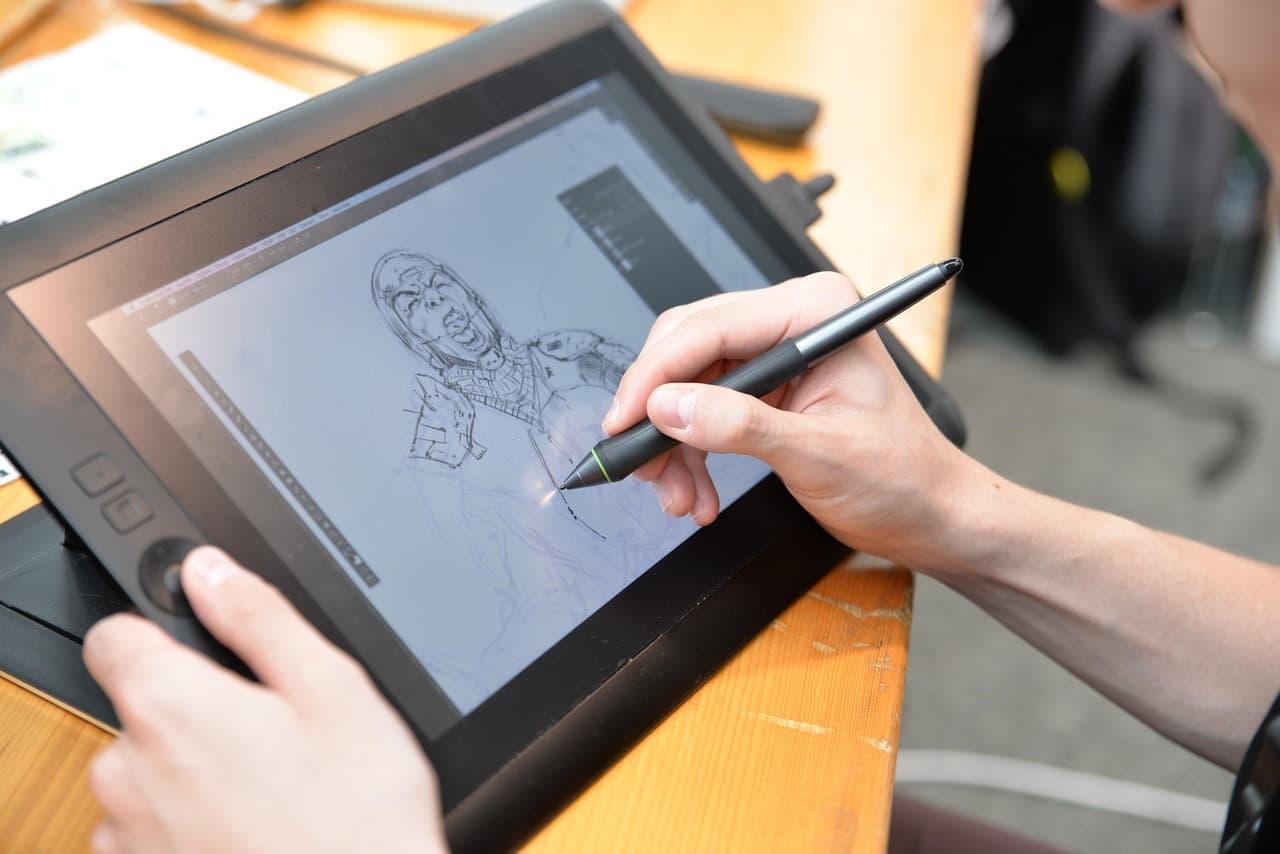
Install the Figma desktop app on your Mac first
The desktop app needs macOS 12 Monterey or later. Figma's desktop guide says Intel and Apple silicon Macs are both supported. The app gives you the same features as the browser version, so the choice comes down to Mac extras and how you like to work.
To check your macOS version, open Apple menu > About This Mac. If you run an older release, update macOS before you plan a deadline around Figma. The step-by-step install is in How to install Figma desktop app on Mac.
macOS 12
Minimum macOS for the Figma desktop app, per Figma's desktop guide. Intel and Apple silicon Macs both work.
Figma Help Center: Guide to the Figma desktop app3,000
AI credits per month listed for Figma's Professional Full seat on the pricing page.
Figma Pricing62
Votes on a 2021 Figma Forum request for CMYK PDF export. No Figma staff reply is visible on the page.
Figma Forum: export to cmyk 3652291%
Digital designers in Figma's 2026 survey (906 people) who say new AI tools improve their designs. Not illustrators only.
State of the Designer 2026: Designers Are Leaning Into the Messy MiddlePreferences open from the Figma menu. Go to Figma > Preferences to change app settings. Check them once, before your first big drawing session, so nothing surprises you mid-job.
Draw with Pencil and Brush before you reach for the Pen
The Pencil and Brush draw directly inside a Figma Design file. They place vector points for you as you drag. The Pen tool works point by point, which is precise but slow for loose sketches. Figma's help article draws this contrast.
The Brush adds texture and color for a more organic, hand-painted look. Both tools are available on all plans. They do need edit access to the file, so check who can change it before you start.
A sketch-to-line workflow, step by step
- Make a frame first, so the art has a clear edge. The frame guide covers presets and shortcuts.
- Pick Pencil for a clean line, or Brush for texture.
- Drag on the canvas. Figma places the points as you go.
- Select the new vector layer, then press Enter to enter vector edit mode.
- Press V to move points, or P to switch to the Pen when you need a fixed corner.
Keep the first pass loose. Clean it up in the second pass. Trying to place every point perfectly while you sketch slows the whole session down.

Clean up paths in vector edit mode
Vector edit mode is where most illustration fixes happen. Select one or more vector layers, then press Enter. Figma's edit guide lists these steps. Hold ⌘ and click to select a layer that sits outside your current selection.
| Key or action | Tool or step | Use it for |
|---|---|---|
| Enter | Enter vector edit mode | After you select one or more vector layers |
| V | Move | Moving points and handles inside a path |
| P | Pen | Placing exact points by hand |
| Q | Lasso | Selecting a group of points in one sweep |
| ⌘ click | Select outside the selection | Reaching a second vector layer in edit mode |
| Bend | Bend tool | Editing Bézier handles, with mirroring options |
Bend is the tool for curves. It edits Bézier handles and offers mirroring options. Use it after the Pencil or Brush has placed the points, not before. You fix a few handles instead of every point.
Fix Variable width and branching paths
Variable width gives a stroke a thick and thin look. It has limits. Figma's help article says it does not work on dashed or dynamic strokes. It also does not work on vector networks with branching paths.
Say you drew a flower stem with several branches using the Brush. You want the stems to taper. If Variable width will not apply, the branches are the likely cause. Select the layer, press Enter, and use Split vector. Each branch becomes its own path, and you can apply the width to each one.
Build a custom brush from a closed vector path
Custom brushes start from closed vector paths. Only closed paths work as a source. If you started with an open stroke, run Outline stroke first so you have a closed shape. By default, a custom brush only exists in the file where you made it.
- Draw a closed shape, such as a leaf, a splat or a bark pattern.
- Convert any open stroke with Outline stroke. Then check that the shape is closed.
- Create the brush from the closed path. Name it after its texture, so it is easy to find later.
- Test it on a short line in the same file before you use it on final art.
The common mistake is building a brush in a client file, then looking for it in your master file. Build brushes where you draw the work. If you reuse brushes across projects, keep one reference file for them. Test each brush there before a new project starts.
Share a Figma file with view-only access for review
Give view access when a client only reviews the work. Give edit access when they need to change the art. The share guide covers invites and link roles. Remember that the drawing tools need edit access, so a view-only link cannot draw.
Edit access also lets the client change your art. Keep the master file on your own account. Share a copy for review, and keep the working file closed to edits from outside.
Print from Figma without a CMYK surprise
Figma works in RGB. It supports RGB, Hex, HSL and HSB color. It does not support CMYK. A 2025 FAQ by Johannes Ippen says CMYK conversion needs an outside tool, such as PDF2CMYK. Plan that step before the printer asks for it.
Pantone colors convert to RGB in exported PDFs, so true spot colors do not survive. The same FAQ advises flattening text to outlines with ⌘ E before you export. Open the PDF and check it before you send it.
A 2021 Figma Forum request for print-ready CMYK PDF export has 62 votes and 35 replies. The page I checked shows no Figma staff response. Do not promise a printer CMYK output from Figma alone.
| Print issue | What happens | What to do |
|---|---|---|
| Brand color in CMYK | Figma works in RGB, so values need conversion | Convert with an outside tool such as PDF2CMYK, then proof |
| Pantone color | The exported PDF converts it to RGB | Put the Pantone name in your brief and confirm with the printer |
| Live text | The printer may not have your font | Flatten text to outlines with ⌘ E before export |
| Unknown print spec | The printer asks for a CMYK PDF | Ask for their spec before you finish the art |
Export SVG and PNG for web and client handoff
Export SVG when the client needs art that scales, such as a logo or an icon set. Export PNG when they need a flat image for a slide, a post or a mockup. Select the layer or frame, then set the format and size in the export settings. The detailed steps are in export as SVG in Figma on Mac and export a frame as PNG in Figma on Mac.
Mac-only features that help illustrators
- Trackpad haptic feedback works on Mac, but it needs Force Click turned on. Check your trackpad settings.
- Menu-bar notifications show Figma alerts without leaving your drawing. Read the menu-bar guide.
- Prototype presentations always show tabs on Mac, according to Figma's desktop guide.
- The FigmaAgent font installer runs silently in the background. It detects fonts already on your Mac and only allows connections from figma.com.
- The Select objects AI image tool, released November 6, 2026, is available on the macOS desktop app only.
Figma's release notes from November 5, 2026 also list work on agent-generated vector illustrations and icons. The update covers grouped vector layers, style references and stroke-based line work. Read the notes before you change your workflow around them.
Where Lazur helps while you draw
Hold ⌥ ⌘ to ask about anything on screen. Lazur answers out loud. Ask where the Bend tool is, and Lazur draws a circle and a label around it. Ask how to make a brush, and Lazur guides you one click at a time, waiting for each click.
Hold fn to dictate. Clean, formatted text lands at the cursor in any app. Use it for client notes, comments or email replies, without stopping to type. A personal dictionary helps with words like Bézier, Pantone and PDF2CMYK. Snippets store the phrases you repeat.
Lazur listens and looks at the screen only while you hold the shortcut. Audio and the screenshot go to AI providers to answer, and they are not stored. Content is never used to train AI models. Lazur does not click buttons or edit your files.
What the tools cost before you commit
Figma's pricing page lists the Professional Full seat at $16/mo, with 3,000 AI credits per month. The Starter plan includes up to 500 AI credits per month, and 150 AI credits per day. The page has a monthly and annual toggle, so confirm which price you are reading.
Lazur has a Pro plan and a Power plan, and dictation is unlimited on both. Lazur's AI actions and Figma's AI credits are separate allowances, so track them apart. Check Lazur pricing for current amounts before you buy.
Mistakes illustrators make in Figma on Mac
- Using the Pen for every line. Start with Pencil or Brush, then fix points in edit mode.
- Forgetting Enter. Select the vector layer and press Enter before you try to move points.
- Using an open stroke as a brush source. Run Outline stroke first, since only closed paths work.
- Sending a view-only link to someone who must draw. Illustration tools need edit access.
- Expecting a custom brush to travel. It stays in one file by default.
- Sending an RGB file to a CMYK printer. Convert outside Figma and proof the result.
A worked session from rough sketch to client export
Here is a session that uses the steps above. You have a pencil sketch of a fox for a sticker sheet. The client wants clean vector art, a PNG for the review deck and an SVG for the logo mark.
- Place the sketch in a frame and lower its opacity, so your new lines stand out.
- Trace with Pencil. Figma places points as you drag, so the trace stays light.
- Select the traced layers and press Enter. Press V to fix points, and P only for corners that need exact placement.
- If the tail will not take Variable width, check for branches. Use Split vector, then apply the width to each branch.
- Export a PNG of the frame for the review deck. Export the logo mark as SVG.
If the printer asks for CMYK, convert the file outside Figma and proof it. Flatten text with ⌘ E before you send it. Keep the RGB master in Figma, so you can make changes without starting over.
Where to go next
Learn Pencil, Enter and V first, since you use them on almost every job. Then add brushes once your shapes are clean. If your icons repeat, the component guide shows how to reuse them. The keyboard shortcuts panel guide helps you find keys you do not know yet.
When you want Lazur on your Mac, download it here. Try it on a real file with a real question, so you can judge it on your own work.
Questions people ask
Do I need the Figma desktop app on a Mac to draw?
You can draw in a browser, but the desktop app adds Mac extras such as menu-bar notifications and trackpad haptic feedback. It needs macOS 12 Monterey or later. Figma says it has the same features as the browser version.
Which Mac chips work with the Figma desktop app?
Both Intel and Apple silicon Macs are supported, according to Figma's desktop guide. The minimum is macOS 12 Monterey, released in October 2021. Check About This Mac under the Apple menu before you install.
Can I draw in Figma with a mouse or trackpad alone?
Pencil and Brush work on the canvas as you drag. Figma's help article does not mention a graphics tablet, so test your own setup on a short job before you rely on it.
Why is Variable width not working on my path?
Variable width does not work on dashed or dynamic strokes. It also does not work on vector networks with branching paths. Enter vector edit mode, use Split vector to separate the branches, then try again.
Why does my custom brush disappear in another file?
By default, custom brushes exist only in the file where you made them. Build brushes in the file where you draw, or keep one reference file for your brushes.
Can Figma export CMYK for print?
Figma works in RGB and does not export CMYK. Convert the file with an outside tool such as PDF2CMYK, then proof it with your printer. The 2021 forum request for CMYK export has 62 votes and no visible staff reply.
Can a client draw on my file through a view-only link?
No. Illustration tools need edit access to the file. A view-only client can look at the work but cannot draw in it. Share a copy if the client needs to test edits.
Does Lazur draw or click for me in Figma?
No. Lazur points at things on screen, explains, drafts text and guides you one click at a time. It waits for each click. It does not operate Figma or other apps for you.
Is the new AI image selection tool available on Mac?
Figma's release notes list the Select objects AI image editing tools as available on the macOS desktop app only, from November 6, 2026. Check the release notes for later changes.
Sources
- Figma Help Center: Draw with illustration tools · Figma · checked 2026-11-08
- Figma Help Center: Edit vector layers · Figma · checked 2026-11-08
- Figma Help Center: Guide to the Figma desktop app · Figma · checked 2026-11-08
- Figma Pricing · Figma · checked 2026-11-08
- Figma product news and release notes · Figma · checked 2026-11-08
- Johannes Ippen: Figma for Print FAQs · Johannes Ippen · checked 2026-11-08
- Figma Forum: export to cmyk 36522 · Figma Forum · checked 2026-11-08
- State of the Designer 2026: Designers Are Leaning Into the Messy Middle · Figma · checked 2026-11-08
- Figma Help Center: Deploy Figma on macOS · Figma · checked 2026-11-08
Try Lazur free for 3 days
Hold a key and ask. Lazur sees your screen, points at the button and talks you through it, in any Mac app. No credit card.