
Google Docs · for speechwriters
Google Docs for speechwriters on Mac: drafting, comments and revisions in 2026
Google Docs for speechwriters on Mac runs in a browser tab, and Chrome is the safest choice. The tools that matter most are comments, suggesting mode and revision history, and each one has a Mac shortcut. This guide covers setup, shortcuts, voice tools, teleprompters and the limits you will hit, plus how Lazur helps while you draft.
You say“Lazur, draft a short opening paragraph from the bullets on this page.”
Lazur · drafts itLazur drafts the paragraph and types it at the cursor in your open Doc.
Draft at your cursor
A short opening paragraph in plain language, typed at the cursor. You read it and decide what stays.
Quick answer
- Google Docs runs in a browser tab on your Mac. Chrome or Edge is the safe choice, especially for offline work.
- Comments are ⌘ ⌥ M, suggesting mode is ⌘ ⌥ ⇧ X, and revision history is ⌘ ⌥ ⇧ H.
- The template gallery has no speech template, so build one from a blank Doc and save it.
- Voice typing needs English for commands and an admin can turn it off. Lazur dictates with Hold fn and answers out loud.
- Teleprompter tools often need the Doc shared as Anyone with the link can view. Copy the speech first and turn sharing off after rehearsal.
1.02 million
characters one Google Doc can hold, regardless of page count
Google Drive Help: File size and conversion limits50 MB
largest text document that converts to Google Docs format
Google Drive Help: File size and conversion limits$12/month
DocPrompter Pro plan, with 25 scripts and live Google Docs sync
DocPrompter: Google Docs teleprompterWhat speechwriters ask Lazur in Google Docs
Hold ⌥ ⌘ in Google Docs and say it.
“Where is suggesting mode?”
Lazur circles the mode dropdown at the top right of the toolbar and labels it.
Points at it · Google Docs
“Walk me through leaving a comment on this line.”
Lazur guides you one click at a time and waits for each click.
Walks you through it · Google Docs
“Read me the closing paragraph out loud.”
Lazur answers out loud, so you hear the line before a reviewer does.
Explains what's on screen · Google Docs
“Draft a warmer version of this opening.”
Lazur drafts the new opening and types it at the cursor.
Drafts it · Google Docs
“Find every place I wrote going forward.”
Lazur points at each match on screen so you can decide one by one.
Points at it · Google Docs
“Where is the revision history from yesterday?”
Lazur circles the route to revision history and names the shortcut ⌘ ⌥ ⇧ H.
Points at it · Google Docs
“Research how this audience reacted to last year's speech.”
Lazur runs the research in its own Chrome tabs and returns a summary and a report.
Researches in the background · Google Docs
“Hold fn and say the new paragraph.”
Lazur dictates clean, formatted text at the cursor in the open Doc.
Types what you say · Google Docs
How speechwriting moves through a shared document
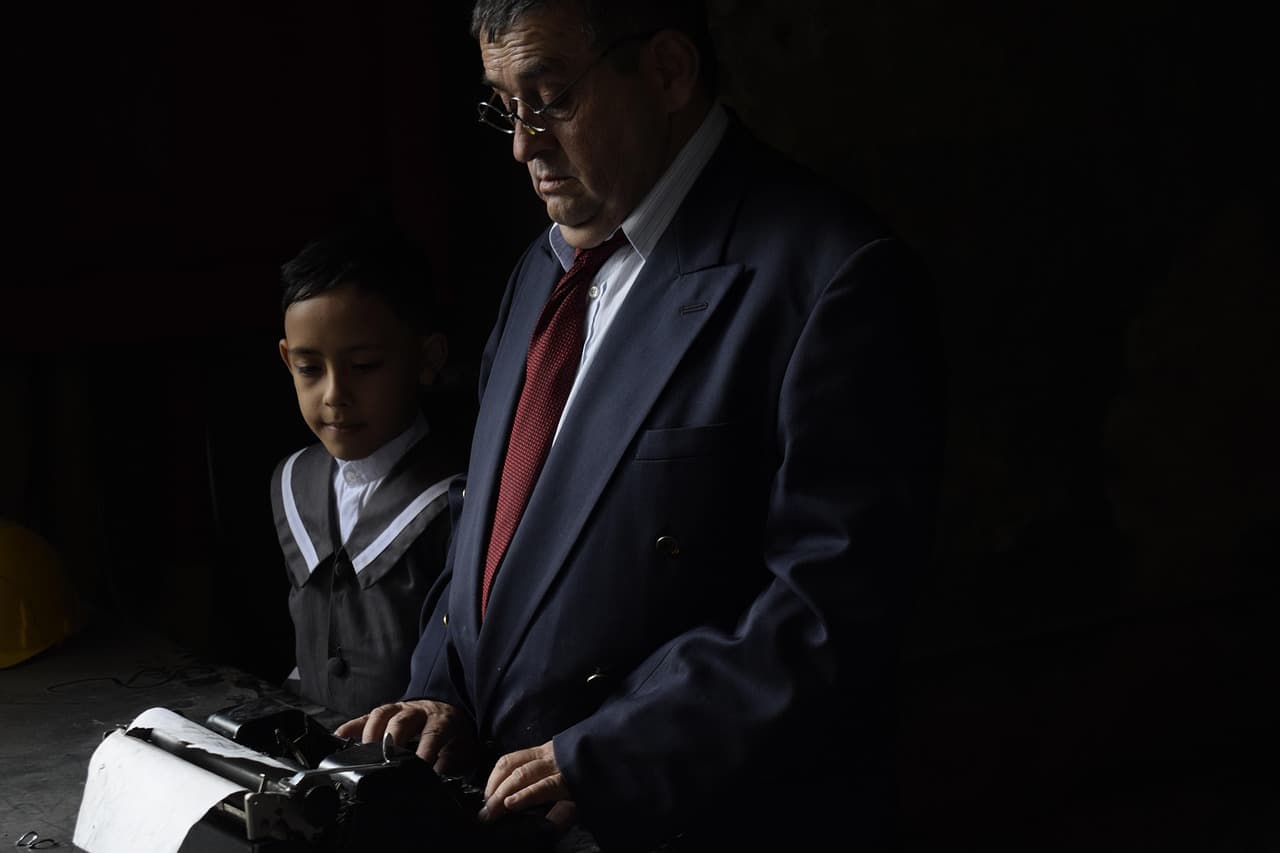
Speechwriting is rarely one person working on one file. Former White House speechwriters describe a process with many hands. Clark Judge, a Reagan speechwriter, says the work starts by identifying key areas with senior advisers. Then speechwriters interview senior and support staff. A draft comes from one writer or from the whole staff, each writing different sections.
Drafts then go to what the process calls staffing. That is where conflicting edits get reconciled. Judge calls speechwriters mediators and negotiators. Unresolved disagreements go to senior staff and the president, who is responsible for the final draft. You do not need a White House team to copy that structure in a Doc. You need a clear place for each kind of change.
Timing matters too. Michael Waldman, a Clinton speechwriter, says speechwriters 'really work for months at a time' on overarching themes. He also says Clinton worked on speeches 'until the last minute,' often rewriting 'right up until the end.' Expect your Doc to change late. Build your sharing and backup habits around that fact.
For a Mac user, that means you need comments for questions, suggestions for wording, and revision history for the record. Google Docs covers all three in one browser tab. The rest of this page shows how to use each one without tripping over the defaults.
Comments, suggestions and revision history on Mac
Google's keyboard shortcut reference lists Mac shortcuts for these tools. The table below is your cheat sheet. Confirm each one in your own Doc before a deadline, because keyboard shortcuts can change.
| Task in Google Docs | Mac shortcut | When a speechwriter uses it |
|---|---|---|
| Add a comment | ⌘ ⌥ M | Flag a line for a senior adviser without changing the text |
| Turn on suggesting mode | ⌘ ⌥ ⇧ X | Let reviewers propose edits that you accept or reject one by one |
| Open revision history | ⌘ ⌥ ⇧ H | Find which pass introduced a line that someone now wants back |
Comments are for questions. Suggestions are for wording. Revision history is for the argument that comes back two drafts later. Keep that split and reviewers stop fighting over the same sentence in the body.
Turn on suggesting mode before reviewers touch the draft
Suggesting mode is the setting most teams get wrong. If the Doc stays in Editing mode, a reviewer can rewrite your draft in place. Their edit becomes your text, and you may not see what changed. Switch modes with the dropdown at the top right of the toolbar, or press ⌘ ⌥ ⇧ X.
Once suggestions arrive, you decide each one. Accept the ones you want and reject the rest. Read the steps for accepting or rejecting suggestions in Google Docs before your first review round.
Ask reviewers to reply inside the comment thread, not in the body of the speech. The thread then holds the reason for each change. When the decision is made, resolve the thread so the next reader sees only open questions. The steps for adding a comment are in this how-to.
Set up Google Docs in a browser on your Mac
Google Docs on a Mac runs in a browser tab. The sources for this page did not confirm a standalone Mac app, so this guide assumes you work in a browser. Chrome is the safest choice. Google's offline page names Chrome and Edge only, which matters if you plan to write without a connection.
Make one folder per speech in Google Drive. Name each Doc with the event and the round, for example 'Remarks for annual dinner, second pass.' A consistent name lets you find last week's version in seconds. When a new round needs its own file, use File > Make a copy. The steps are in this guide.
Speech templates: the gallery has none, so build your own
Open File > New > From a template to browse the gallery. Google's template help lists writing and publishing categories. Those include blog posts, press releases, business proposals and journals. The help page lists no speech or speechwriting category. Search the gallery anyway, but do not expect a speech template.
Google announced 40 new pageless templates on December 10, 2024. The rollout was expected to finish by January 23, 2025. The announced examples were blog posts, press releases, business proposals and journals, not speeches. The gain for you is the layout, not the content.
Build your own template from a blank Doc. Use headings for the sections you always need: the opening, the main points, the close, and a delivery notes block for pauses and stress marks. The steps are in create a template in Google Docs.
If the Doc you are in already has content, the template opens in new document tabs. Plan for that. Keep your working Doc in its own window so the template does not bury your draft.
1.02 million
characters one Google Doc can hold, regardless of page count
Google Drive Help: File size and conversion limits50 MB
largest text document that converts to Google Docs format
Google Drive Help: File size and conversion limits$12/month
DocPrompter Pro plan, with 25 scripts and live Google Docs sync
DocPrompter: Google Docs teleprompterVoice typing in Google Docs, and when to switch to dictation
Google's voice typing sits in the Tools menu. Open Tools > Voice typing, click the microphone to start, and click it again to stop. Google's help page says the feature works with the latest versions of Chrome, Edge and Safari. The page lists no Mac keyboard shortcut.
Voice typing has limits that matter for a speech. Voice commands work only in English. The account language and the document language must both be English. Punctuation may not be available in every language. An administrator can also turn voice typing off, so check your work account before you plan around it.
Voice typing also runs through the browser. The browser handles speech to text before the words reach Docs. That matters when you dictate a quote, because a name or a date can come through wrong. Check every line of a quote against the source before you accept it.
Lazur gives you a second route for dictation. Hold fn and speak. Lazur dictates clean, formatted text at the cursor in any app, Google Docs included. Snippets, a personal dictionary and clipboard slots help with names and phrases you repeat.
Keep the two routes separate in your head. Use Google's voice typing when you want the words in the Doc through Google's own tool. Use Lazur when you want formatted dictation at the cursor while the speech outline stays open. Either way, you read the result before it goes to a reviewer.
Reading a draft aloud and running a teleprompter
You will want to hear the draft before the event. The sources for this page did not confirm a built-in read-aloud feature in Google Docs. Check Google's help search before you plan around one. Until then, your own read-through is the reliable check.
Lazur answers out loud. Ask about the open Doc and you hear the answer, which helps when your eyes are on the podium notes. Ask for the last paragraph, or ask whether the closing line repeats the opening. The answer comes back in voice.
A teleprompter needs the text on a second screen. DocPrompter turns a Google Doc into a teleprompter script. Its site says the Doc must be shared as 'Anyone with the link can view.' The Free plan costs $0 and allows one saved script. Pro costs $12 per month for 25 scripts with live Google Docs sync. Studio costs $29 per month with unlimited scripts. Check their pricing page before you pay.
The voice-follow feature uses speech recognition to track your place in the script. DocPrompter's site gives no privacy policy or data handling details. It says the script 'stays in Google Docs' and the tool 'runs in your browser.' Treat those lines as claims to check, not as a promise.
Offline work, file limits and Safari on Mac
Offline editing needs Google Chrome or Microsoft Edge. Private browsing is not allowed. Install and turn on the Google Docs Offline extension in Chrome. Then open Google Drive, open Settings, turn on Offline, and open Docs. The full steps are in the offline guide.
Set this up before you travel. Google's offline page names Chrome and Edge only, so Safari is not a route for offline editing. If you rehearse on a plane, open the Doc in Chrome and confirm it loads before you leave.
File limits rarely hit a speech. A Google Doc can hold up to 1.02 million characters, regardless of page count. A text document converted to Google Docs format can be up to 50 MB. A single speech stays far below those numbers. A master file that holds every draft you ever wrote could get close, so keep old drafts in separate Docs.

Screen reader and VoiceOver settings for Google Docs
If you use VoiceOver, the default keys can collide with Docs. Google's screen reader page says the default VoiceOver modifier, Control+Option, conflicts with Google Docs menu shortcuts. Google suggests a few fixes. Try them in this order.
- Change the VoiceOver modifier keys to Caps Lock only.
- Use the VoiceOver pass-through command before you type a Docs menu shortcut.
- Search the menus with ⌥ /, instead of memorizing every path.
- Open the Tools menu with ⌃ ⌥ T.
- Turn on screen reader support with ⌘ ⌥ Z.
Those shortcuts come from Google's screen reader help page. They change the keys you press every day, so write them down. Test them in a practice Doc before you open a live draft.
Ask Lazur for help while you draft in Google Docs
Lazur works while the Doc is open. Hold ⌥ ⌘ and ask about anything on screen. Lazur answers out loud. Ask where something is and Lazur draws a circle and a label around it on your screen. Ask how to do something and Lazur guides you one click at a time, waiting for each click.
Lazur listens and looks at the screen only while you hold the shortcut. Audio and the screenshot go to AI providers to answer you, and they are not stored. Content is never used to train AI models. That matters when the draft is unreleased.
- Where is suggesting mode? Lazur circles the control and labels it.
- Walk me through a comment on this sentence. Lazur guides you one click at a time.
- Read me the closing paragraph. Lazur answers out loud.
- Draft a warmer opening. Lazur types it where your cursor sits.
- Find every place I wrote going forward. Lazur points at each match.
- Research how the audience reacted last year. Lazur runs it in its own Chrome tabs and returns a summary and a report.
Lazur does not click buttons, edit files or run other apps for you. You stay in control of the Doc. That fits speech work. A line changes only when you decide it changes.
Mistakes speechwriters make in shared Docs
- Leaving the Doc in Editing mode while reviewers work. Their changes land in your text, not in suggestions.
- Sharing as Anyone with the link for a teleprompter, then forgetting to turn it off.
- Trusting voice typing for quotes and names. Check each one against the source.
- Keeping the document language set to something other than English while voice commands are on. Commands need English.
- Leaving comment threads open after the decision. Resolve them so the next reader sees real questions.
- Treating revision history as a backup. Make a copy before a large rewrite.
Most of these come from one habit. People change the file before they agree on the words. Sort the changes first, then edit.
Your first speech in Google Docs on Mac
Start with one speech. Make a folder, a template with your usual headings, and a share set to suggesting mode for each reviewer. Run one round of comments before you ask for suggestions. Check length with the word count, since a speech has to fit its time slot.
Keep the teleprompter and offline steps for the week of the event, not the first draft. If you want Lazur's help in the Doc, download Lazur for an Apple silicon or Intel Mac. The pricing page lists current plans. Ask for a short draft, read it, and keep only the lines you would say to a room.

Questions people ask
Is there a Google Docs app for Mac?
Google Docs runs in a web browser on a Mac. The sources for this page did not confirm a standalone Mac app, so plan on Chrome or Edge in a browser tab. Check Google's Docs help for current app options before you install anything.
Which Mac shortcut adds a comment in Google Docs?
Press ⌘ ⌥ M. Google's keyboard shortcut reference lists it for Mac. Suggesting mode is ⌘ ⌥ ⇧ X, and revision history is ⌘ ⌥ ⇧ H.
Does Google Docs have a speech template?
Not in the gallery that the help page describes. File > New > From a template lists writing and publishing templates such as blog posts, press releases and journals. Build your own speech template from a blank Doc and save it.
Can I dictate a speech in Google Docs on a Mac?
Yes, with voice typing from Tools > Voice typing in Chrome, Edge or Safari. Voice commands work only in English, and an administrator can turn the feature off. Lazur's Hold fn dictation works in any app, including Google Docs.
Can I work on a speech in Google Docs without internet?
Yes, in Chrome or Edge. Install the Google Docs Offline extension, then turn on Offline in Google Drive settings. Private browsing does not work, and Google's offline page does not list Safari.
Is it safe to use a teleprompter app with a Google Doc?
Be careful. Teleprompter tools such as DocPrompter need the Doc shared as Anyone with the link can view. Use a separate copy for the teleprompter, and turn sharing off after the event.
Does Lazur edit my Google Doc for me?
No. Lazur does not click buttons or operate apps for you. It points, guides, answers out loud, drafts text and types it. You keep control of the document and decide what stays.
Sources
- Google Docs Editors Help: Keyboard shortcuts · Google · checked 2026-11-08
- Google Docs Editors Help: Use voice typing · Google · checked 2026-11-08
- Google Docs Editors Help: Use Google Docs Editors with a screen reader · Google · checked 2026-11-08
- Google Docs Editors Help: Work on Google Docs, Sheets, & Slides offline · Google · checked 2026-11-08
- Google Drive Help: File size and conversion limits · Google · checked 2026-11-08
- Google Docs Editors Help: Use templates · Google · checked 2026-11-08
- Google Workspace Updates: 40 new templates in Google Docs · Google Workspace Updates · checked 2026-11-08
- PBS NewsHour: Former speechwriters describe State of the Union drafting process · PBS NewsHour · checked 2026-11-08
- DocPrompter: Google Docs teleprompter · DocPrompter · checked 2026-11-08
Try Lazur free for 3 days
Hold a key and ask. Lazur sees your screen, points at the button and talks you through it, in any Mac app. No credit card.