
Figma · for game designers
Figma for game designers on Mac: HUD, menu and prototype work in 2026
Figma for game designers on Mac runs in the normal Figma desktop app, where you build HUD mockups, menus, card layouts and clickable prototypes. The game-specific work is the handoff. Engines like Unity read your frames in their own way, and Figma has no dedicated offline mode. This guide covers setup, layout habits, shortcuts, handoff limits and where Lazur fits in.
You say“Lazur, where is the Frame tool?”
Lazur · points at itLazur draws a circle and a label around the Frame tool in the toolbar, so you can click it yourself.
Quick answer
- Figma's Mac desktop app needs macOS 12 or later and runs on Intel and Apple Silicon.
- Build HUD and menu screens in frames, then add auto layout and constraints so they resize cleanly.
- Figma has no dedicated offline mode, so open every working file online before a playtest or a trip.
- Unity's UI Toolkit Connector for Figma is experimental, and structure only travels from Figma to Unity.
- Lazur sees your screen while you hold ⌥⌘, points at tools and guides you one click at a time.
macOS 12
Minimum macOS version for the Figma desktop app, according to Figma's help center.
Guide to the Figma desktop app (Figma Help Center)36%
Game industry professionals who use generative AI tools as part of their job, from more than 2,300 respondents.
GDC 2026 State of the Game Industry52%
Game industry professionals who think generative AI is having a negative impact on the industry.
GDC 2026 State of the Game IndustryWhat game designers ask Lazur in Figma
Hold ⌥ ⌘ in Figma and say it.
“Lazur, where is the Frame tool?”
Lazur circles the Frame tool and labels it on screen. You click it yourself.
Points at it · Figma
“Walk me through adding auto layout to this health bar.”
Lazur names one step at a time and waits for your click before it gives the next one.
Walks you through it · Figma
“What does F6 do in Figma on Mac?”
Lazur explains that F6 moves focus to the toolbar, so the arrow keys can pick a tool.
Explains what's on screen · Figma
“Hold fn and say: the stamina ring needs more contrast on the dark theme.”
Lazur types the note at your cursor, in any app, as clean formatted text.
Types what you say · Figma
“Draft a message to the engineer about the pause menu spacing.”
Lazur drafts the message as text you can edit before you send it.
Drafts it · Figma
“Research how other games lay out a minimap.”
Lazur runs the search in its own Chrome tabs and returns a summary and a report.
Researches in the background · Figma
“Remind me to export the menu PNGs before the playtest.”
Lazur adds the export task to Apple Reminders, so it shows up before the playtest.
Handles the small stuff · Figma
Set up the Figma desktop app on your Mac
Use the desktop app, not only a browser tab. Figma's help center says the macOS desktop app needs macOS 12 Monterey or later. It runs on both Intel and Apple Silicon Macs. To check your version, open the Apple menu > About This Mac before you install anything.
If you need the install steps, read how to install the Figma desktop app on Mac. Once it runs, open Figma > Preferences. The help article says trackpad haptic feedback is set there, so you can match it to how you drag layers.
Sign in, then open one test file before you build anything real. This shows whether the app opens your team's files. Figma needs a reliable and stable internet connection, so test on the Wi-Fi you will use at work.

Know which file type you are building first
Game designers in Figma usually build a few kinds of files. Each one needs a different setup. Pick the type first, because it decides your frame sizes, your naming and who needs access.
A HUD mockup needs frames at your target screen size, plus text styles for numbers and labels. A menu flow needs one frame per screen and prototype links between them. A card or board prototype needs a master frame for each card type. An inventory screen repeats the same slot many times, so it needs components from the start.
- HUD mockup: target-size frames, text styles for labels and numbers, components for bars and icons.
- Menu flow: one frame per screen, a shared header component, and prototype links for every button.
- Card or board prototype: a master frame per card type, variables for stat values, export frames for print.
- System diagram: FigJam for the flow, with Figma frames for the screens each box points to.
Name each file for the build it supports, such as HUD candidate or pause menu playtest. Teammates search by name. A vague name costs you time at review.
Frame sizes and the Frame tool on Mac
Press F to pick the Frame tool, then drag or click to place a frame. The shortcut is quicker than the toolbar. F6 moves focus to the toolbar, so the arrow keys can pick a tool. Use frame sizes that match the screen the player sees, not a generic artboard.
Presets are the fastest start, but they are made for devices, not games. Set a custom size to match your target display or your engine canvas. Then write that size into the frame name. A teammate can tell a widescreen HUD from a portrait phone menu at a glance.
Say your HUD targets one widescreen display. Make a master frame at that size and build the HUD on it. For a second aspect ratio, duplicate the master and rename both frames. Do not stretch one frame to fake the other. A stretch moves every label, and the damage shows up later in the engine. See how to create a frame in Figma on Mac for the full steps.
Auto layout and constraints for HUD and menu elements
Auto layout keeps spacing steady when text length changes. Select the layers, then press ⇧A. Figma wraps them in an auto layout frame. Use it for health bars, button rows and inventory cells. The add auto layout guide covers the full steps.
Constraints handle what auto layout cannot. A minimap pinned to the top right should stay there when its parent frame changes size. Select the layer, open the constraints control in the right sidebar, and pin it to the right and top edges. The constraints guide explains each pin option.
Take a health bar with a label, a numeric value and a small icon in one row. Put all three in auto layout with a fixed gap. Set the bar fill to fill its container. When a player name gets longer, the row grows, and the icon stays aligned to the label.
The common mistake is a fixed width on every text box. Longer labels then clip, and nobody sees it until a playtest. Set text to grow with its content, and test the longest string you expect.
macOS 12
Minimum macOS version for the Figma desktop app, according to Figma's help center.
Guide to the Figma desktop app (Figma Help Center)36%
Game industry professionals who use generative AI tools as part of their job, from more than 2,300 respondents.
GDC 2026 State of the Game Industry52%
Game industry professionals who think generative AI is having a negative impact on the industry.
GDC 2026 State of the Game IndustryComponents and variables for repeated game UI
A health bar, a button and a card frame repeat across screens. Turn each one into a component. Select the layer, then press ⌘⌥K. Change the master once, and every instance updates. The create a component guide shows the sidebar steps.
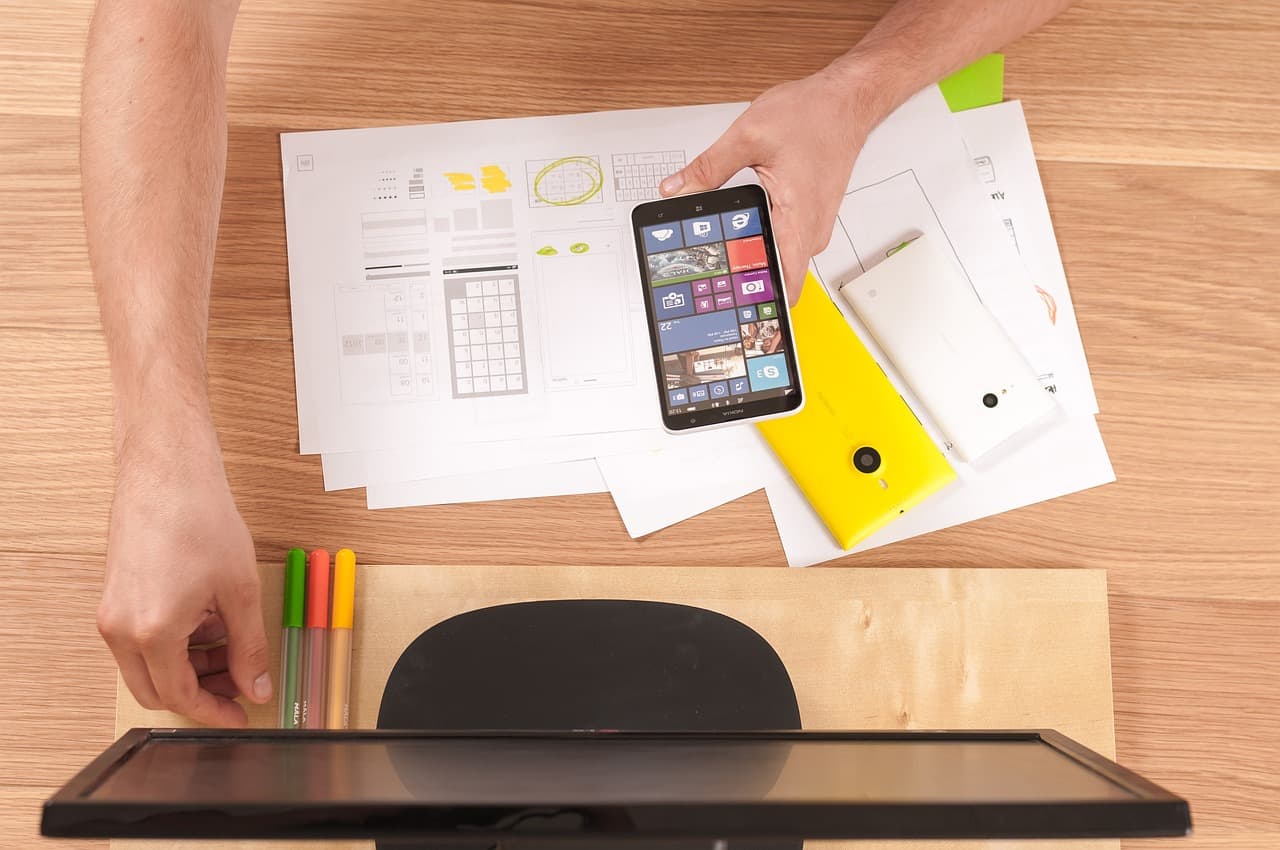
Variables hold values that change, such as a team accent color or a stat number you want to test at several levels. Bind a color to a variable, then switch its value to see every screen update at once. Start with create a variable in Figma on Mac.
Text styles hold font, size and weight for HUD labels. A label style keeps every small caption in the same font and size. Set one up with create a text style in Figma on Mac.
Detaching an instance to tweak one bar feels quick. It cuts the link to the master, so the next master change skips that bar. If the change is one-off, say so in the layer name.
Prototype a menu flow and present it on Mac
A prototype lets a teammate click through a menu without a build. Open the Prototype tab in the right sidebar. Drag from the connection handle on a button to the target frame. Set the trigger, such as On click, and pick a transition. The prototype guide has the full steps.
Presenting has one Mac-only option. Figma's help article lists View > Always Show Tabs When Presenting as a Mac menu item. Turn it on if your team needs the tab bar visible during a review. Then present the prototype and test it with the trackpad.
A pause menu opens from a HUD button in the game. In Figma, that button links to a pause frame. Add a Back button on the pause frame that returns to the HUD. Test the whole loop in Present mode, not only in the editor, and click it the way a player would.
Keep one check for each user path. A menu that works in the main flow may fail in a second path, such as a settings screen opened from the pause menu. Test both before the review.
Offline work on a train or at a playtest venue
Figma has no dedicated offline mode. Its help center says the app needs a reliable and stable connection, and it does not have an offline version. Files open offline only if you opened them while online first.
Offline, you cannot receive collaborator updates on an open file. You cannot search for or insert library components, install new plugins, or use version history or multiplayer features. Plan around those gaps before you leave.
You have a playtest at a venue with weak Wi-Fi. Open the menu file at home and let it load fully. Add any library components you need while you are still online, since you cannot insert them offline. Export PNG backups of the key screens, so the room can see them if the connection drops. See how to export a frame as PNG in Figma on Mac.
Do not treat a file that opened once as a working copy. Teammates' changes will not arrive on an open file while you are offline. Check the file again once you reconnect.
Handing UI to Unity with the UI Toolkit Connector
Unity has an experimental connector for Figma. The package is com.unity.ui.figma, and its first release is 0.1.0-exp.1. It requires Unity 6000.3 or later and the Figma desktop app. It imports selected frames as UXML and USS, which are Unity's UI files.
Figma owns the hierarchy. Structure travels one way, from Figma to Unity. If someone adds or reorders elements in Unity, the connector does not send that back to Figma. Decide which side owns layout before the first import, and write that rule in the file.
Access matters. Import and push back need Figma edit access in Design mode. A view-only link cannot run the connector. Dev seats can import but cannot push changes back, so plan who runs the pushes.
Unity's own docs call this a 0.1 release, and some things do not carry over yet. Users report nodes that import as invisible or empty, stretched image fills, instance swap properties that do not send, and text strokes and frame gradients that are not reported. Read the current thread before you plan a sprint around it.
A pause menu background looks stretched after import. Check the image fill mode in Figma first. If it still stretches, export the background as a PNG and crop it to the target size before the handoff. For vector pieces such as icons, see export as SVG in Figma on Mac.
Keyboard shortcuts for Figma on Mac
Open the keyboard shortcuts panel with Control Shift ?, written ⌃⇧?. Figma's keyboard help lists this shortcut for Mac. If the panel will not open, see how to show keyboard shortcuts in Figma on Mac.
| Shortcut | What it does |
|---|---|
| ⌃⇧? | Opens the keyboard shortcuts panel |
| ⌘ + or ⌘ - | Zooms in or out |
| ⌥ Space | Starts keyboard box selection |
| F6 | Moves focus to the toolbar so arrow keys can pick a tool |
| F | Selects the Frame tool |
| ⇧A | Adds auto layout to the selected layers |
| ⌘⌥K | Creates a component from the selected layer |
| ⌘D | Duplicates the selected layer |
Keyboard box selection with ⌥ Space helps in a dense HUD, where tiny overlapping icons are hard to grab with a mouse. Check the shortcuts panel for how the selection works in your build.
Most people learn two shortcuts and stop. Pick three that match your daily work, such as F, ⇧A and ⌘⌥K. Practice them on one HUD before you try the rest.
What a game team pays for Figma seats
Figma's pricing page lists Professional plan prices by seat type. A full editor seat costs $16 a month. A Dev seat costs $12 a month, and a Collab seat costs $3 a month. Each seat type also gets a monthly AI credit allowance: 3,000 for the editor seat, and 500 each for Dev and Collab.
Match seats to jobs. An editor seat suits people who build and change screens. A Dev seat can import for Unity but cannot push changes back. Check what each seat can do on the pricing page before you assign them.
The Starter plan is free. Its pricing page lists unlimited drafts, which covers a solo prototype. Confirm current limits on the page, since plans change.
What the 2026 surveys say about AI in design and games
Figma's State of the Designer 2026 report surveyed 906 digital designers across several regions. Of them, 89% say they are working faster, 80% say they are collaborating better, and 91% say new AI tools improve their designs. The report covers designers in general, not game designers. It gives no time-saved figures.
Game data is thinner. The 2026 GDC State of the Game Industry found that 36% of game industry professionals use generative AI tools as part of their job. It also found that 52% think generative AI is having a negative impact on the industry.
Game design and narrative workers were among the most negative about AI's impact, at 63%. GDC gives no AI usage rate for game design alone. Do not read these numbers as a Figma usage rate. Use them as context for team talk about tools.
Mac-only extras to check in the desktop app
Figma's release notes list a Select area tool for AI image editing. It is available on the macOS desktop app only, per the November 6, 2026 entry. Read that entry before you use it, since menu paths can move between releases.
Use Select area when you need to change one part of a reference image, such as the glow around a health orb, without rebuilding the whole screen. Keep your original frame untouched while you test the change.
Mistakes game designers make in Figma on Mac
- Designing at one arbitrary size, then letting the engine stretch the result.
- Skipping auto layout, so each label change means nudging by hand.
- Detaching instances for one-off tweaks, which cuts the link to the master.
- Sending a view-only link and expecting engineers to push changes back.
- Opening a file for the first time offline, which fails because it never loaded online.
- Leaving layers named Rectangle 47. Name them for what they do, such as HealthBar_Fill.
Where Lazur fits while you work in Figma
Lazur is a voice assistant for the Mac that lives in the notch. Hold ⌥⌘, which is Option and Command together, to ask about anything on screen. Lazur answers out loud. It listens and looks at the screen only while you hold the shortcut.
Ask where something is, and Lazur draws a circle and a label around it on your screen. Ask how to do something, and Lazur guides you one click at a time, waiting for each click. Lazur does not click buttons or operate Figma for you.
Hold fn to dictate clean, formatted text at the cursor in any app. Research runs in Lazur's own Chrome tabs through the Lazur for Chrome extension, and comes back with a summary and a report.
Lazur runs on macOS, on Apple silicon and Intel Macs. Windows is planned, not available. Audio and the screenshot go to AI providers to answer, and they are not stored. Content is never used to train AI models. Compare the plans on the pricing page, or download Lazur to try it.
A first-week checklist for game designers on Mac
- Check your version under Apple menu > About This Mac. You need macOS 12 or later.
- Make one master frame per screen size you ship, and name each one after its target.
- Build one HUD or menu screen with auto layout, text styles and a component for each repeated element.
- Open every working file online once, so it opens later without a connection.
- Test the prototype in Present mode, with the trackpad, and click every path a player can take.
- Before any Unity handoff, confirm edit access and read the connector thread for known issues.
Questions people ask
Does Figma have a desktop app for game designers on Mac?
Yes. Figma's help center describes a macOS desktop app that needs macOS 12 or later. It is optimized for both Intel and Apple Silicon Macs. Game designers use the same app as other designers.
Can I use Figma offline on a Mac?
Not really. Figma says it has no dedicated offline mode. You can open only files you opened while online. Offline, you also cannot receive collaborator updates, insert library components or use version history.
Which shortcut opens the keyboard shortcuts panel in Figma on Mac?
Control Shift ? (⌃⇧?) opens the panel, according to Figma's keyboard help article. If it does not respond, follow the guide on showing the shortcuts panel in Figma on Mac.
Can Unity import Figma designs directly?
Unity has an experimental UI Toolkit Connector for Figma, package com.unity.ui.figma, first released as 0.1.0-exp.1. It needs Unity 6000.3 or later and the Figma desktop app. It imports selected frames as UXML and USS, and structure only travels one way.
Do I need a paid Figma plan to design game UI?
Figma's Starter plan is free, and its pricing page lists unlimited drafts. A Professional editor seat costs $16 a month on the same page. Check the pricing page for current limits, since plans change.
Does Lazur draw in Figma for me?
No. Lazur does not click buttons, edit files or operate other apps for you. Ask where a tool is, and Lazur circles it on screen. Ask how to do something, and it guides you one click at a time.
Does Lazur work on Windows?
Not yet. Lazur runs on macOS, on Apple silicon and Intel Macs. Windows is planned, but it is not available.
Does Lazur send my screen to AI providers?
Lazur listens and looks at the screen only while you hold the shortcut. Audio and the screenshot go to AI providers to answer, and they are not stored. Content is never used to train AI models.
What should I check in a Figma file before a playtest?
Open the file online so it loads offline later. Confirm the frames match the build, export PNG backups of key screens, and run the prototype in Present mode on the trackpad.
Sources
- Guide to the Figma desktop app · Figma Help Center · checked 2026-11-08
- My files are not opening · Figma Help Center · checked 2026-11-08
- Use Figma products with a keyboard · Figma Help Center · checked 2026-11-08
- Figma product news and release notes · Figma · checked 2026-11-08
- Figma Pricing · Figma · checked 2026-11-08
- State of the Designer 2026: Designers Are Leaning Into the Messy Middle · Figma · checked 2026-11-08
- GDC 2026 State of the Game Industry Reveals Impact of Layoffs, Generative AI, and More · GDC · checked 2026-11-08
- Experimental: UI Toolkit Connector for Figma design · Unity Discussions · checked 2026-11-08
Try Lazur free for 3 days
Hold a key and ask. Lazur sees your screen, points at the button and talks you through it, in any Mac app. No credit card.